X
This article was written by Jack Lloyd. Jack Lloyd is a Technology Writer and Editor for wikiHow. He has over two years of experience writing and editing technology-related articles. He is technology enthusiast and an English teacher.
This article has been viewed 41,136 times.
This wikiHow teaches you how to report any post on Facebook, both in the mobile app and on the desktop site.
Steps
Method 1
Method 1 of 1:Reporting a Post
Method 1
-
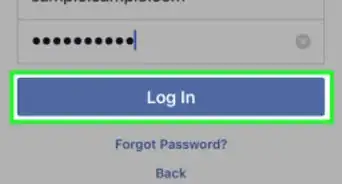
1Open Facebook. Tap the Facebook app (mobile) or go to https://www.facebook.com/ in your browser (desktop). This will open your News Feed page if you're already logged in.
- If you aren't already logged in, enter your email address (or phone number) and password before continuing.
-
2Go to the photo or video you want to report. Scroll through your News Feed to find the post or type the name of the person who posted into the search bar. You can also go to your profile if the post is on your Timeline:
- Mobile - Tap ☰, tap your name, and scroll down to the post. You can't report your own posts.
- Desktop - Click your name in the top-right corner of the News Feed page.
Advertisement -
3
-
4Select Report this post (mobile) or Report post (desktop). You'll see this option near the bottom of the drop-down menu.
-
5Select a reason for reporting the post. Tap or click one of the following options:
- I think it shouldn't be on Facebook - Select this option if the post includes hate speech or threats of violence.
- It's spam
- Selecting the It's annoying or not interesting option will not report the post to Facebook.
-
6Select further reasons if prompted. If you selected I think it shouldn't be on Facebook, you'll be prompted to select a specific reason (e.g., It's harassment or hate speech).
- On desktop, you must first click Continue in the bottom-right corner of the window.
- If you select the Something else option here, you'll have to select another reason before continuing.
-
7Select Mark this post as spam or Submit to Facebook for Review. Depending on your selected report option, you'll see one of these results. Select one to report the post to Facebook.Advertisement


=== Reporting a Photo ===
On Mobile
-
1Open Facebook. It's a dark-blue app with a white "f" on it. This will open your Facebook News Feed if you're already logged into Facebook on your phone or tablet.
- If you aren't logged into Facebook, enter your email address (or phone number) and password to continue.
-
2Go to the photo you want to report. Scroll through your News Feed to find the post--or type the name of the person who posted into the search bar--and then tap the photo to open it.
-
3Tap ⋯ (iPhone) or ⋮ (Android). It's in the upper-right corner of the screen. Doing so brings up a menu.
-
4Tap I don't like this photo. This option is in the menu.
-
5Select a report option. Tap one of the following report options:
- I think it shouldn't be on Facebook
- It's spam
-
6Select further reasons if prompted. If you selected I think it shouldn't be on Facebook, you'll be prompted to select a specific reason (e.g., It's harassment or hate speech).
- If you select the Something else option here, you'll have to select another reason before continuing.
-
7Tap Mark this post as spam or Submit to Facebook for Review. You'll see one of these options depending on the report option you selected. Tapping one will report the post to Facebook.Advertisement


On Desktop
-
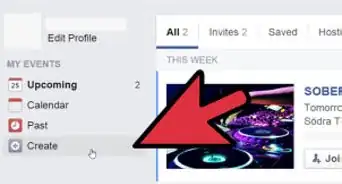
1Go to Facebook's website. Go to https://www.facebook.com in your preferred browser. This will load your News Feed if you're already logged into Facebook.
- If you aren't already logged into Facebook, enter your email address (or phone number) and password before continuing.
-
2Go to the photo you want to report. Scroll through your News Feed to find the post--or type the name of the person who posted into the search bar--and then click the photo to open it.
-
3Select the photo or video, then click Options. This button is at the bottom of the window. Clicking it will prompt a pop-up menu.
-
4Click Report Photo. It's an option in the pop-up menu.
-
5Select a report option. Click one of the following options, then click Continue:
- I think it shouldn't be on Facebook
- It's spam
-
6Select further reasons if prompted. If you selected I think it shouldn't be on Facebook, you'll be prompted to select a specific reason (e.g., It's harassment or hate speech).
- If you select the Something else option here, you'll have to select another reason before continuing.
-
7Click Mark this post as spam or Submit to Facebook for Review. You'll see one of these options depending on the report option you selected. Clicking one will report the post to Facebook.Advertisement


Warnings
- Don't abuse the "Report Post" feature. Only report posts or content that violate Facebook's terms of use.Thanks!
Advertisement




About This Article
Advertisement