X
This article was written by Jack Lloyd. Jack Lloyd is a Technology Writer and Editor for wikiHow. He has over two years of experience writing and editing technology-related articles. He is technology enthusiast and an English teacher.
This article has been viewed 149,431 times.
This wikiHow teaches you how to reconnect your mobile device or computer to a wireless network after resetting the network's settings or updating to a new device, as well as how to troubleshoot a connection.
Steps
Method 1
Method 1 of 5:On iPhone
Method 1
-
1
-
2Tap Wi-Fi. It's near the top of the Settings page.
-
3Tap a network's name. This should be the name of the network to which you wish to reconnect.
-
4Enter the network's password if prompted. You'll do so in the field that's to the right of the "Password" heading.
- If you don't know the password, look for it on the bottom or back of the wireless router or modem.
- If you aren't prompted to select a password, your phone should automatically connect to the router.
-
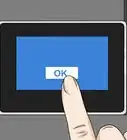
5Tap Join. It's in the top-right corner of the screen. As long as your password is correct, your iPhone should reconnect to your wireless router within a few seconds.


Method 2
Method 2 of 5:On Android
Method 2
-
1Swipe down from the top of the screen. Doing so will bring down the quick settings menu.
-
2
-
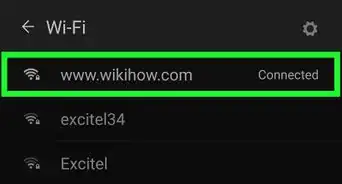
3Tap a network's name. This should be the network to which you wish to reconnect.
-
4Enter the network's password. This is either the password you created for the router when you set it up, or the default router password that's on the back or bottom of the router unit.
- If you purchased your router and modem together, look for the password (also called a "network" or "security" key) on the back or bottom of the modem as well.
-
5Tap CONNECT. As long as the password is correct, doing so will prompt your Android to reconnect to your wireless router.


Method 3
Method 3 of 5:On Windows
Method 3
-
1
-
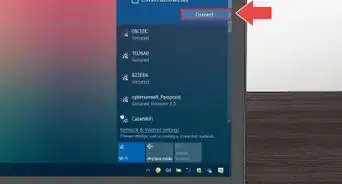
2Click your router's network name. If you set up the router with a specific name, it should appear here.
- If you didn't set up a specific name, you should see the router's brand (e.g., "Linksys") and model number.
-
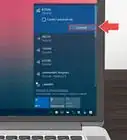
3Click Connect. It's in the bottom-right side of the Wi-Fi network's name area.
-
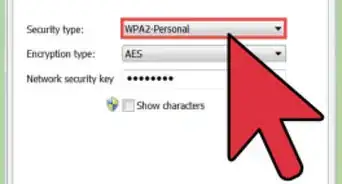
4Enter the network's password. You'll do this in the text box below the "Enter the network's security key" heading.
- If you didn't add a password to your network when setting up the router, the password (called a "Security Key") is on the back or bottom of the router unit.
-
5Click Next. As long as the password is correct, your Windows computer will be reconnected to the wireless network.


Method 4
Method 4 of 5:On Mac
Method 4
-
1
-
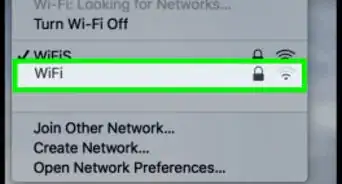
2Click your router's name. It should appear in the drop-down menu below the Wi-Fi icon. If you assigned a name to your router when setting it up, the name will appear here.
- If you didn't use a custom name for your network, you'll likely see the router's brand or model number (for example, you might see "Cisco" and a series of numbers and letters for a Cisco router).
-
3Enter the password. This is either the password you created for the router when you set it up, or the default router password that's on the back or bottom of the router unit.
- If you purchased your router and modem together, look for the password (also called a "network" or "security" key) on the back or bottom of the modem as well.
-
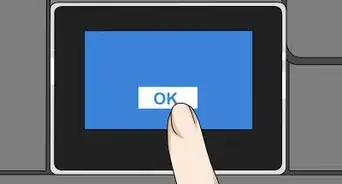
4Click OK. Doing so will reconnect your Mac to the router.


Method 5
Method 5 of 5:Troubleshooting
Method 5
-
1Restart your devices. Sometimes a device simply won't connect to a wireless router because of an improper start-up sequence. Restarting your device may fix this problem.
-
2Determine why your device won't automatically connect. If your wireless router kicked your device off of the network, it may be because of a few different reasons:
- The wireless Internet's password was changed - Select the wireless network and enter the updated password.
- The device is not up to date - Update your device to the minimum required version.
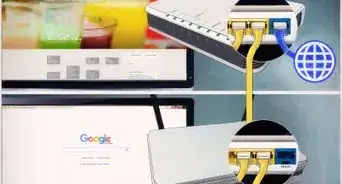
- The router was reset - Use the router's stock password to connect. The stock password (also known as the "security/network key") is usually on the back or bottom of the router.
-
3"Forget" the connection on your device. Causing your computer or phone to "Forget" the Wi-Fi network's settings will clear up any connection conflicts. To do so:
- iPhone - Open Settings, tap Wi-Fi, tap a network, and tap Forget This Network at the top of the page.
- Android - Open Settings, tap Connections (Samsung devices), tap Wi-Fi, tap a network, and tap Forget.
- Windows - Open Settings, click Network & Internet, click Wi-Fi, click Manage known networks, click a network name, and click Forget.
- Mac - Click the Wi-Fi symbol, click Open Network Preferences, click the Wi-Fi tab, click Advanced, click a network's name, and click -.
-
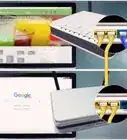
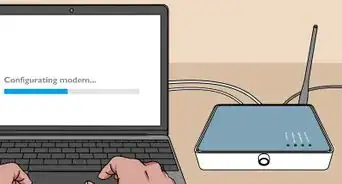
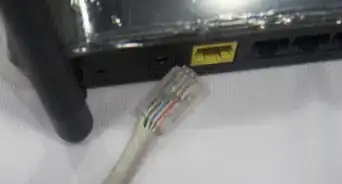
4Reset the router to factory settings. You can do this by finding the "Reset" button, which is usually a tiny hole on the back of the router, and pressing it with a bent paperclip for ten seconds. Once you reset your router, you'll be able to reconnect using the router's stock password and network name.
-
5Try connecting to a different network. If you can connect to a coffee shop's or school's Wi-Fi but can't connect to your own, the problem is likely with your router or connection, not your device.
-
6Call your service provider's Customer Support hotline. If your router or connection is the problem, you'll need to call and request a network test or a replacement router and modem (if you rent equipment from your ISP).


Community Q&A
-
QuestionHow can I reconnect to my WiFi?
 Community AnswerGo to the network center on your computer. You can access a simple version at the bottom right of the screen in Windows. The network name should be on a list of available networks -- click on it and then click "connect." If it's not there, it's either out of range or your PC lacks wireless capability.
 -
QuestionHow can I reconnect to the internet on my iPad?
 Community AnswerGo to settings, then WiFi. Choose your network and input your WiFi passkey. This should reconnect you.
 -
QuestionIs it possible to lose the internet connection on one PC and not the other?
 Community AnswerIt's possible if something went wrong on that specific computer (or it was deliberately disconnected from the internet). Make sure the computer is not in Airplane Mode and doesn't have the WiFi option turned off.
 -
QuestionWhat do I do if I lost my router password?Community AnswerIf you can still read the stock password off of the back of the router, you can reset the router and then reconnect using the stock password. Otherwise, you can call the router's company and request a new password, though you'll likely need the router's serial number.
-
QuestionHow can I turn off Airplane Mode on my computer?Community AnswerIn most cases, you'll click the airplane icon in the task bar (bottom-right corner of the screen on Windows, top-right corner of the screen on Mac), then click the "Off" button.
Warnings
- If your device is too old to receive a wireless signal, you will likely have to update to a newer device.Thanks!
-Connection-Step-12-Version-5.webp)


-Step-6-Version-5.webp)

-Connection-Step-12-Version-5.webp)