X
This article was written by Jack Lloyd. Jack Lloyd is a Technology Writer and Editor for wikiHow. He has over two years of experience writing and editing technology-related articles. He is technology enthusiast and an English teacher.
This article has been viewed 191,100 times.
This wikiHow teaches you how to read your old chat messages on Facebook. You can do this from within the Facebook Messenger app, or you can use the desktop Facebook website.
Steps
Method 1
Method 1 of 2:On Mobile
Method 1
-
1Open Facebook Messenger. This app resembles a white bolt of lightning on a blue background.
- If you aren't signed into Messenger, type in your phone number, tap Continue, and enter your password.
-
2Tap Home. It's a house-shaped tab in the bottom-left corner of the screen.
-
3Tap a conversation. Older messages will be further down the page, so you may have to scroll down.
-
4Scroll up through your messages. The further up the page you scroll, the older the messages are.
-
5Tap a message you want to read. This will open it, allowing you to read it.


Method 2
Method 2 of 2:On Desktop
Method 2
-
1Go to Facebook's website. Go to https://www.facebook.com in your preferred browser. This will load your News Feed if you're already logged into Facebook.
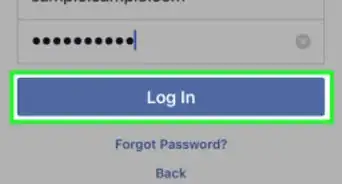
- If you aren't already logged into Facebook, enter your email address (or phone number) and password before continuing.
-
2Click the Messenger icon. It's a speech bubble with a lightning bolt icon that's in the upper-right side of the Facebook window. A drop-down window will appear.
-
3Click See All in Messenger. This link is at the bottom of the drop-down window.
-
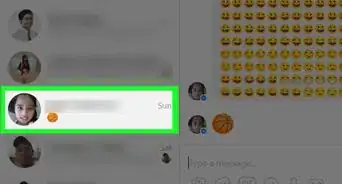
4Scroll down through your conversations. Conversations will be listed in chronological order, so older ones will be toward the bottom of the page.
-
5Click a message you want to read. Doing so will open it, allowing you to read it.
-
6Scroll up through the conversation. The further up the conversation you are, the older the messages are.
-
7
-
8Click Archived Threads. This option is in the middle of the drop-down menu.
-
9Review your archived messages. Any messages that you archived will appear here. If you can't find an old message in your inbox, it may be on this page.


Warnings
- You cannot respond to archived messages.Thanks!

About This Article
Article SummaryX
1. Open Facebook Messenger.
2. Tap Home.
3. Tap a conversation.
4. Scroll down through your messages.
Did this summary help you?