This article was written by Nicole Levine, MFA. Nicole Levine is a Technology Writer and Editor for wikiHow. She has more than 20 years of experience creating technical documentation and leading support teams at major web hosting and software companies. Nicole also holds an MFA in Creative Writing from Portland State University and teaches composition, fiction-writing, and zine-making at various institutions.
The wikiHow Tech Team also followed the article's instructions and verified that they work.
This wikiHow teaches you how to use Twitter's tweet promotion features on your iPhone or iPad. Twitter offers two promotion options: Quick Promote and Promote Mode. Quick Promote allows you to promote an individual tweet for a low fee, while Promote Mode automatically widens the reach of your first 10 tweets daily for a flat subscription fee.
Steps
Method 1
Method 1 of 2:Using Quick Promote to Promote a Tweet
-
1Open the Twitter app on your iPhone or iPad. It's the blue and white bird icon typically found on the home screen.
- Promoting your tweets increases your account's reach beyond your own Twitter followers. This can help you attract new followers, get more likes/retweets, and promote traffic to your website.
- If you'd rather Twitter automatically promote your first several tweets of the day for a flat monthly fee, see the Using Promote Mode method.
-
2Tap the New Tweet icon. It's the blue and white feather at the bottom-right corner of the screen.Advertisement
-
3Compose a tweet. You can promote any type of tweet as long as it complies with Twitter's quality policy. To make your tweet engaging, add a stylish GIF that reflects your product or message.
- You can only promote a tweet once, so make it count!
-
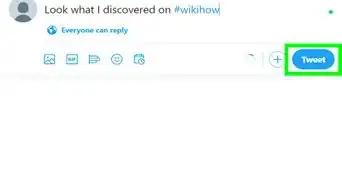
4Tap Tweet. It's at the top-right corner. This shares the tweet with your followers.
-
5Tap the tweet you want to promote. If you don't see it, tap your profile photo at the top-left corner of the screen, and then tap Profile. Scroll down and tap your tweet to open it full-screen.
-
6Tap View Tweet Activity. It's at the bottom of the tweet. This displays some statistics about your tweet.
-
7Scroll down and tap the blue Get started button. It's under the "Reach a bigger audience" header.[1]
- If you've promoted a tweet before, tap Promote this Tweet instead.
-
8Enter your billing information. Type a valid credit/debit card number, expiration date, and the CVV number from the far-right edge of the signature stripe. You'll also need to enter the billing address that's associated with your credit/debit account.
- You'll only have to do this the first time you promote a tweet.
-
9Scroll down and tap Next. It's at the bottom of the page.
-
10Set your budget. You'll be able to choose from several options that vary depending on the breadth of your audience.
-
11Follow the on-screen instructions to confirm your selection. Your tweet will now be promoted outside of your personal network.
-
12Monitor your tweet's progress. Now when you tap View Tweet Activity on your tweet, you'll notice more metrics you can use for future promotions.Advertisement


Method 2
Method 2 of 2:Using Promote Mode to Promote Tweets Automatically
-
1Go to https://www.twitter.com in your iPhone or iPad's web browser. It's not possible to create an ad campaign on the mobile Twitter app, but you can do so on the website. If you're not already signed in, tap Log in to do so now.
- Use this method if you'd like to sign up for Twitter's Promote Mode, a service that automatically promotes your first 10 tweets of the day to the audience of your choosing. You'll be charged a monthly flat fee for this service.[2]
- Promoting your tweets increases your account's reach beyond your own Twitter followers. This can help you attract new followers, get more likes/retweets, and promote traffic to your website.
-
2Tap your profile photo. It's at the top-left corner of the screen. A menu will expand.
-
3Scroll down and tap Promote Mode. It's near the middle of the menu.
-
4Tap Get started. It's the blue button at the bottom of the screen.
-
5Select your location and tap Next.
-
6Select a targeting method and tap Next. You can choose to promote your tweets to certain people based on their Interests or by their Location.
-
7Select your targeting preferences and tap Next.
- If you selected Interests, you can tap up to 5 interests from the list.
- If you selected Location, type the name of a region where you'd like your tweets to be promoted. You can enter up to 5 regions.
-
8Review your targeting preferences and subtotal. If you need to make any changes, tap Edit next to a topic to do so.
- As of June 20, 2019, the monthly Promote Mode rate is 99 USD (United States), 9900 JPY (Japan), or 79 GBP (UK).
-
9Read and accept the Terms of Service. To read the terms, tap the blue Terms of Service link at the bottom of the page. If you agree, tap the checkbox next to "I agree that my use of Twitter Promote Mode is subject to the Twitter Promote Mode Beta Program Terms of Service."
-
10Tap Proceed. It's at the top-right corner of the screen.
-
11Follow the on-screen instructions to process your payment. Once your payment is accepted, you'll be billed for your first month of Promote Mode service.
- There's no need to do anything special to promote a tweet. Just create your tweets as normal, making sure they meet Twitter's quality standards. Click here to review Twitter's policy.
-
12Monitor your promoted tweets. Once Twitter starts promoting your tweets, you'll be able to monitor their statistics in the Promote Mode dashboard. You can access it by tapping your profile photo and selecting Promote Mode in the menu.Advertisement





References
About This Article

1. Tap a tweet.
2. Tap View Tweet Activity.
3. Tap Get Started.
4. Enter your billing info.
5. Set your budget.
6. Follow the on-screen instructions.