X
wikiHow is a “wiki,” similar to Wikipedia, which means that many of our articles are co-written by multiple authors. To create this article, volunteer authors worked to edit and improve it over time.
This article has been viewed 10,140 times.
Learn more...
Are you an avid walker who enjoys walking so much that you'd like to track your walks? Well, with MapMyWalk on your phone, you'll be able to track these walks directly from your phone. If you don't know how to complete this task, this article can teach you.
Steps
-
1Download, install and open the MapMyWalk app on your iPhone.
-
2Login to your account. If you don't have an account, the app will ask you to set one up.
-
3Look down at the bottom of the screen. You'll see a map.
-
4Tap the "Start a Workout" button that exists.
-
5Walk from location one to location two with your iPhone on you.
-
6Tap the "Pause Workout" button when you are finished walking, or have to take a break for some reason. However, this will only stop the timer, and you won't be done quite yet.
-
7Slide the "Slide to Finish" bar. Only drag the bar from within the starting point in the black bar.
-
8Record some notes, or something to share with your MapMyWalk and/or social networking friends (such as those on Facebook). Type your notes in the "Notes" section, which, by default holds the default text "How was your workout?".
-
9Slide the bars to adjust the posting to each individual social networking site MapMyWalk can post to.
-
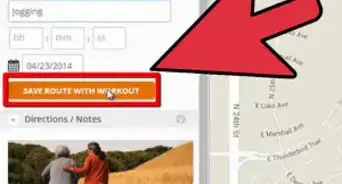
10Select the "Save Workout" to save the workout in your account, so you can refresh your mind later.


Community Q&A
-
QuestionWhere should I keep my phone while using this app?
 Community AnswerMost people put in their pocket, but some people attach it to their arm with a holder that you can buy.
 -
QuestionHow do I record my distance?
 Brian K Manoj VarugheseCommunity AnswerThe most accurate way to report your location is using eBird Android, which automatically records a track of your travel and the distance you covered.
 -
QuestionMy MapMyWalk app won't open. What should I do?
 ChrisTop AnswererTry uninstalling the application and reinstalling it. It should fix any problems you are having.