This article was co-authored by wikiHow Staff. Our trained team of editors and researchers validate articles for accuracy and comprehensiveness. wikiHow's Content Management Team carefully monitors the work from our editorial staff to ensure that each article is backed by trusted research and meets our high quality standards.
The wikiHow Tech Team also followed the article's instructions and verified that they work.
This article has been viewed 1,016,920 times.
Learn more...
This wikiHow teaches you how to allow the apps on your iPhone to access your current location to provide you with accurate location based information.
Steps
Part 1
Part 1 of 2:Enabling Location Services
-
1Open your iPhone’s Settings app. This is the app with the gray cogs icon, usually found on one of your home screens or in a folder labeled “Utilities.”
- If you can’t find the “Settings” app, swipe down on your home screen and enter "Settings" in the Spotlight search bar.
-
2Tap Privacy. You'll find this at the bottom of the third group of options.
-
3Tap Location Services. This will take you to a menu where you can manage your location services.
-
4Slide the button next to Location Services to the "On" position. You'll see a list of apps appear once the service is enabled.
- If this slider is disabled, Location Services may be disabled in the "Restrictions" menu. See the next section for details.
-
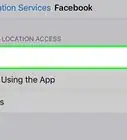
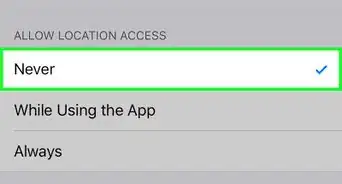
5Tap an app to set its location preferences. When you tap an app in the list, you'll see the various Location Services options available for the app.
- Select Never to disable Location Services completely for the app.
- Select While Using to limit Location Services to just when the app is open and active.
- Select Always to allow Location Services at all times. This is only available for select background apps, such as Weather.


Part 2
Part 2 of 2:Troubleshooting Location Services
-
1Open the Settings app. If you can't enable Location Services, it may be disabled through the "Restrictions" menu. You can change your Restrictions from the Settings menu.
-
2Select General. This is located in the third menu of settings options.
-
3Tap Restrictions. If Restrictions are enabled, you'll be prompted for your Restrictions passcode.
- If you can't remember your Restrictions passcode, try 1111 or 0000.
- If you have completely forgotten your Restrictions passcode, you'll need to restore your iOS device through iTunes to reset it. See Restore an iPhone for details. Make sure to backup any important data before restoring.
-
4Scroll down and tap Location Settings. This will be under the “Privacy” section.
-
5Select Allow Changes. This will enable you to turn on Location Services.
-
6Slide the button next to Location Services to the “On” position. You can find this directly below the “Allow Changes” option.[1]


Community Q&A
-
QuestionHow do I share location services with others?
 Community AnswerTap "Share My Location" in the Location Services menu. Make sure "Share My Location" is enabled. Once it's enabled, open a conversation with the person you want to share your location with in Messages. Tap the "Details" button, and then tap "Send My Current Location."
 -
QuestionHow can you track an iPhone 4 you have lost?
 Community AnswerIf Find My iPhone was enabled in the iCloud settings for your iPhone, you can track it from the iCloud website or the Find My iPhone app on another iOS device. Log in with your Apple ID and you'll be able to see the last known location of your iPhone.
 -
QuestionHow can I restore my iPhone location settings?Community AnswerYou can reset your iPhone location settings simply by opening Settings > General > Reset and tap Reset Location & Privacy. You can restore your previous settings from a back up. If you do not have a back up, you will need to set new location settings.
-
QuestionDo you know why my "Maps" app is unable to provide me with directions?
 Community AnswerGPS applications need to have Location Services enabled for the applications to determine your location. Turn on location services and restart your GPS app.
 -
QuestionDo you know why I am still unable to open location services?Community AnswerYou can simply fix this by going opening Settings>General>Restrictions>Enable Restrictions. If that doesn't work, try doing a hard reset by holding down the home and power button for 10 seconds.
-
QuestionHow do I tell if location services are turned on?Community AnswerOpen Settings>Privacy>Location Services>Slide the button next to Location Services the "On" position.
-
QuestionHow do I share location services on a website using Safari?Community AnswerOpen Settings>Privacy>Location Services>Scroll down and tap Safari>Tap "While Using the App."
-
QuestionCan I find the IP address of the app accessing my device addresses?Community AnswerYou can see the IP address of visitors to your Wi-Fi network. However, there is not a way to access the IP address of apps downloaded on your iPhone.













About This Article

1. Open Settings.
2. Tap Privacy.
3. Tap Location Services.
4. Slide the button next to Location Services to the "On" position.