X
wikiHow is a “wiki,” similar to Wikipedia, which means that many of our articles are co-written by multiple authors. To create this article, 25 people, some anonymous, worked to edit and improve it over time.
This article has been viewed 21,613 times.
Learn more...
Do you have an awesome area in you Roblox place that you don't want just any person to get into (at least not without paying for a shirt)? You've come to the right place!
Steps
-
1Create a barrier around your area using 4 bricks, one in the back, one in the left, one in the right, and one in the top. DO NOT make a front yet. Make sure that you anchor them before resizing.
-
2Make a brick in the front and set the transparency to .9 or to your preference to let people see inside and witness how awesome it is and want to buy your shirt.Advertisement
-
3In Workspace, find your front brick (or use the mouse icon towards the top of the window and click on the brick) and click on it. The brick in the list should be fully highlighted in blue, this means that you have selected it.
-
4Move you mouse cursor over to the uppermost tabs on the left. Click on the "Insert" tab, click on "Object", click on "Script". In Explorer Workspace double-click on the newly-added script--- it should already be highlighted in blue.
-
5In the script, erase everything there [print: 'Hello World!'], then paste this in:
- print ("VIP T-Shirt Door Script Loaded")
- -- list of account names allowed to go through the door.
- permission = { "YourNameHere" } -- This is how many people can still get through, so you don't have to change shirts. You can also have another friend here.
- -- Texture of the VIP shirt.
- texture = "http://www.roblox.com/asset/?version=1&id=1194117" -- Go to the wiki below this script to find out how to change the shirt. And paste the link in between the "" marks.
- function checkOkToLetIn(name)
- for i = 1,#permission do
- -- convert strings to all uppercase, otherwise we will let in
- -- "Username" but not "username" or "uSERNAME"
- if (string.upper(name) == string.upper(permission[i])) then return true end
- end
- return false
- end
- local Door = script.Parent
- function onTouched(hit)
- print("Door Hit")
- local human = hit.Parent:findFirstChild("Humanoid")
- if (human ~= nil ) then
- if human.Parent.Torso.roblox.Texture == texture then --the shirt
- Door.Transparency = 0.7
- Door.CanCollide = false
- wait(4) -- this is how long the door is open
- Door.CanCollide = true
- Door.Transparency = 0
- -- a human has touched this door!
- print("Human touched door")
- -- test the human's name against the permission list
- elseif (checkOkToLetIn(human.Parent.Name)) then
- print("Human passed test")
- Door.Transparency = 0.7
- Door.CanCollide = false
- wait(4) -- this is how long the door is open
- Door.CanCollide = true
- Door.Transparency = 0
- else human.Health = 0 -- delete this line of you want a non-killing VIP door
- end
- end
- end
- script.Parent.Touched:connect(onTouched)
-
6To get a shirt for your place, you must be wearing the shirt you want to be the VIP one. Then you must visit your place in Build Solo mode. Then:
- Go to View > Explorer, then the Explorer will pop up on the side of your screen.
- Click on the plus sign next to Workspace.
- Click on the plus sign next to your character's name.
- Scroll down to "Torso".
- Click on the plus sign next to "Torso".
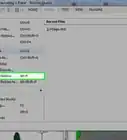
- You should see the shirt graphic. Highlight the shirt graphic (not the plus sign).
- Go to View again, then to Properties, which will pop up under the explorer. The shirt graphic should still be highlighted.
-
7In Properties, copy an address that looks like a web address next to "Texture".
- Open the script, and paste that address where the script tells you to. (In between the "" marks, in place of the address that's there.) You can now sell your shirt, if you are in Builders Club, that is. I would test the door online to make sure the door works before you advertise the shirt.
-
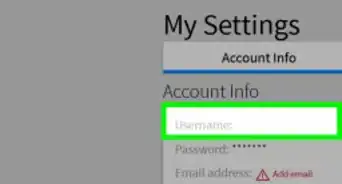
8In the script, it is strongly suggested to replace YourNameHere with your username inside the "" in line 4.
-
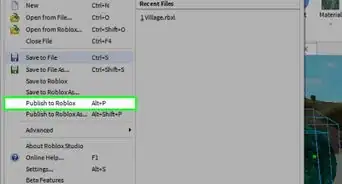
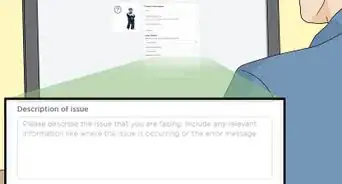
9Save and exit the build. Test the door out in Play mode. If it still doesn't work, you can get real official help from:Advertisement


Community Q&A
-
QuestionHow do I put items in the room?
 OC_VORTEKSCommunity AnswerSelect the model that you want to put in the room, select the move tool, and drag it in the direction of the room.
Warnings
- If you have a slow connection, try to keep the brick/connector count lower to prevent "Not Responding" or lagging.Thanks!
Advertisement
Things You'll Need
- computer
- keyboard
- mouse
- internet connection
- Roblox (a downloadable, free program, if you paid, DEMAND A REFUND!!)
References
- wiki.roblox.com
About This Article
Advertisement