X
wikiHow is a “wiki,” similar to Wikipedia, which means that many of our articles are co-written by multiple authors. To create this article, volunteer authors worked to edit and improve it over time.
Learn more...
Apple Music makes sharing playlists and songs easy so you can connect with friends and family over your favorite artists and songs. It won't take long to learn how to share your old or new playlists. This wikiHow will teach you how to share any kind of playlist with your friends and family.
Steps
Method 1
Method 1 of 2:On a Desktop
Method 1
-
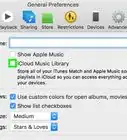
1Launch Apple Music on your computer and log in. You can find the app by searching "Music" using the Spotlight Search function on your Mac.
-
2Choose File > New > Playlist to create a new playlist. Add the name of the playlist and an optional description.
- You can add songs now or fill up your playlist as you come across songs you like.
Advertisement -
3To share your playlist, click the three-dot icon. The three dots will be located on the right-hand side of the screen.
-
4Choose the Share Playlist option and copy the provided link. You can send this link via, email, text, or any other sharing method.[1]Advertisement
Method 2
Method 2 of 2:On an iPhone
Method 2
-
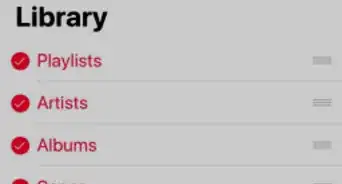
1Launch Apple Music on your iPhone and click the My Music option in the bottom right hand corner. This will take you to a list of playlist you’ve followed and created.[2]
-
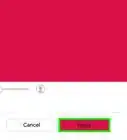
2Create a new playlist by clicking the New button in the top right corner. Add the name of the playlist and an optional description.
- You can add songs now or fill up your playlist as you come across songs you like.
-
3Click Done to confirm the creation of the playlist. You can always go back and add or delete songs from the playlist at a later time.
-
4In the playlist click the three-dot icon in the upper right hand corner. This will pull up a few options.[3]
-
5Of the options, click the Share Playlist option. You’ll have the choice to share your playlist via
- Text
- Airdrop
- And more!
Advertisement

References
About This Article
Advertisement