X
wikiHow is a “wiki,” similar to Wikipedia, which means that many of our articles are co-written by multiple authors. To create this article, volunteer authors worked to edit and improve it over time.
The wikiHow Tech Team also followed the article's instructions and verified that they work.
This article has been viewed 51,298 times.
Learn more...
If you have a PC with Windows 8 but miss the old Windows 7, you can bring back the Start Menu and the aero glass theme with the transparent window title bars and border and hide the new elements such as the “Charms” menu. Here are some ways to make Windows 8 look like Windows 7.
Steps
Method 1
Method 1 of 3:Installing a Start Menu Replacement
Method 1
-
1Go to Classic Shell at Classicshell.net. This is a free program, which brings back the Start button on Windows 8.
-
2Click the “Download Now” button.
-
3See that the download has started automatically. Take care not to click any other “download” buttons, which can install unwanted programs on your computer.
-
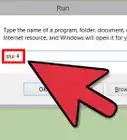
4Click “Run” when prompted.
-
5Accept the license agreement.
-
6Choose from various features, like Classic IE9, Classic Start menu and Classic Explorer.
-
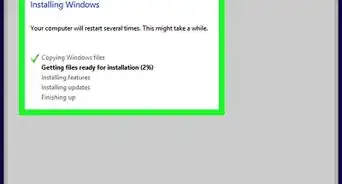
7Click “Install.” Wait for the installation to complete.
-
8Click “Finish.”
-
9Notice the new approximation to the old Microsoft Start logo.
-
10Click on “Start” and choose “Basic settings” or “All settings.” You can now browse through the familiar layout of programs and settings.


Method 2
Method 2 of 3:Disabling Some of the Windows 8 Features
Method 2
-
1Download a free tool named Skip Metro Suite at skip-metro-suite.en.softonic.com/.
-
2Click “Free Download.” Do not click any of the “Start Download” buttons, which will install other unwanted programs.
-
3Install the program.
-
4Start the program.
-
5Check “Skip Start Screen.”
-
6Disable other Windows 8 features that you do not like, such as the Charms Bar.
-
7Save your settings.


Method 3
Method 3 of 3:Enabling the Aeroglass Theme
Method 3
-
1Right click on Windows 8 Desktop and select "Personalize." The Personalization window will open.
-
2Ensure that the default Aero theme is applied. If it is not, apply the Aero theme.
-
3Click on "Window Color" at the bottom of the window.
-
4Leave the Color and Appearance window open and do not click anything in it.
-
5Right click your desktop again and select “Personalize” again to open a second Personalization window.
-
6Click on the "Windows Basic" theme to apply Aero Lite theme.
-
7Go to the previously opened Personalization window that you opened earlier.
-
8Uncheck the "Enable transparency" option and then check it again.
-
9Click the "Save changes" button. You will now have an approximation to Aeroglass in the Aero Lite theme.


Community Q&A
-
QuestionCan I still tell that it's Windows 8?
 Community AnswerYes. The easiest way is to go to control panel, then "System and Security," then "Review your system's status." There it will say there what version of Windows you have as well as some other basic information. At first glance, though, no.