X
wikiHow is a “wiki,” similar to Wikipedia, which means that many of our articles are co-written by multiple authors. To create this article, volunteer authors worked to edit and improve it over time.
This article has been viewed 41,144 times.
Learn more...
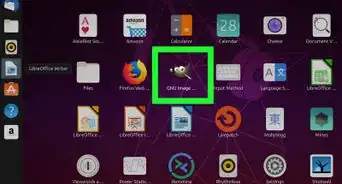
GIMP is a powerful tool that you can do to create just about any type of graphic that you could want. On top of that, it's free!!!
Steps
-
1Start a new file by selecting File >> New... Be sure that the background is white and the foreground is black.
-
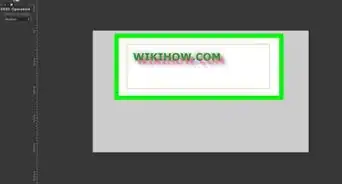
2Using the text tool, enter in some text into your background. Here, wikiHow is being used.
-
3Right click on the layer and select Merge Down. You will end up with black text on a white background.
-
4Invert the colors by going to Colors >> Invert, so that you have white text on a black background.
-
5Blur your text. Do this by going to Filters >> Blur >> Gaussian Blur... Set it for 5.
-
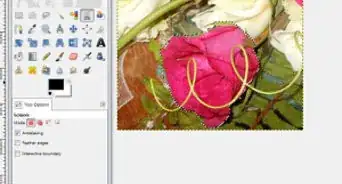
6Decide on a texture that you will use for bumpmapping your text. Feverfew flowers are being used here. Add your texture on the layer above the text.
-
7Go to Filters >> Map >> Bump Map... Once in the Bump Map options, be sure that you select the text layer as the Bump Map.
-
8
-
9Still on the texture layer, right click on it in the layer dialog box and then select Add Layer Mask. Be sure that it is white.
-
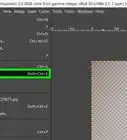
10Activate the text layer (select the text layer). Copy that onto the clipboard by going to Edit >> Copy or CTRL C.
-
11
-
12While on the floating layer (the pasted image), anchor the layer.
-
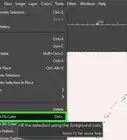
13Add another layer and fill it with whatever color that you want. Try a complementary color for your fill.
-
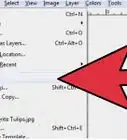
14Move it down so that it is below the layer with the layer mask. It should look like this screenshot.
-
15
-
16Go to Colors >> Levels and adjust the layer until you like the way it looks. You want to make it appear sharper without compromising the look of your image..


References
- Source of information comes from GIMP.org