This article was co-authored by wikiHow Staff. Our trained team of editors and researchers validate articles for accuracy and comprehensiveness. wikiHow's Content Management Team carefully monitors the work from our editorial staff to ensure that each article is backed by trusted research and meets our high quality standards.
The wikiHow Tech Team also followed the article's instructions and verified that they work.
This article has been viewed 1,392 times.
Learn more...
This wikiHow teaches you how to earn additional storage space in your Dropbox account, using Android. You can invite friends to sign up for a new account, or answer community questions for extra space.
Steps
Method 1
Method 1 of 2:Inviting Friends
-
1Open Dropbox on your Android. The Dropbox app looks like a white, open box in a blue, circle button. You can find it on your Apps menu.
- If you're not automatically logged in, tap the Sign in button at the bottom to sign in with your email, or select the SIGN IN WITH GOOGLE option.
-
2Tap the ☰ icon. This button is in the upper-left corner of your screen. It will open your menu panel on the left-hand side.
-
3Scroll down and tap Settings. This option is at the bottom of your navigation menu. It will open your Dropbox settings on a new page.
-
4Scroll down and tap Invite friends. This option is listed under the "Get space" heading on the settings menu.
-
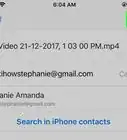
5Tap the SEARCH & SYNC YOUR CONTACTS button. This will allow you to enter a name or email to invite.
-
6Enter your contact's email address. Tap the "Name or email" field on the Invite friends page, and type or paste your contact's email here.
- Matching results will appear on a drop-down menu as you type. If your contact pops up here, just tap their name to add their address to the invite.
- You can add multiple contacts here, and invite them all at once.
-
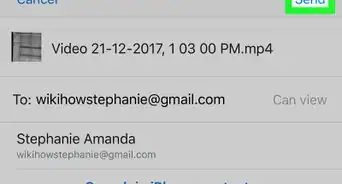
7Tap the icon. This button is in the upper-right corner of the page. It will send an invitation email to the selected contact.
- For each contact, you get 500 MB of extra storage space.
- Your contact will have to sign up via the referral link in your invitation email, install the desktop app, and verify their email address before you receive extra space.


Method 2
Method 2 of 2:Answering Community Questions
-
1Open the Dropbox Community Forum in your internet browser. Type www.dropboxforum.com into the address bar, and hit the Go button.
-
2Tap Find answers. This button will open a list of the latest forum discussions.
-
3Find and tap a question you can answer. Scroll down to skim through the community posts, and open a question you want to answer.
-
4Tap the Reply button below the question. This option is written in blue letters in the lower-right corner of every question. It will allow you to post your answer as a reply.
- If you're not automatically logged in, you'll be prompted to sign in with your email and password before you can post a reply.
-
5Enter your answer to the question in the post. Make sure to provide a clear and concise answer, and cover all the different aspects of the post's question.
-
6Tap the Post button. This is a blue button in the lower-right corner of the page. It will post your answer below the original forum post.
-
7Wait for a Mighty Answer badge on your reply. Dropbox community officers regularly patrol the forums, and award what they consider a great answer with a special badge.
- If you get a Mighty Answer badge on any of your forum replies, you'll get 1 GB of additional space in your Dropbox account.
- The Mighty Answer badge is pretty much a subjective token of assessment. There is no standard guide or checklist on how to get one.


About This Article

1. Open Dropbox.
2. Tap the "☰" icon.
3. Scroll down and tap Settings.
4. Scroll down and tap Invite friends.
5. Tap SEARCH & SYNC YOUR CONTACTS.
6. Enter your contact's email.
7. Tap the Send icon.