X
wikiHow is a “wiki,” similar to Wikipedia, which means that many of our articles are co-written by multiple authors. To create this article, volunteer authors worked to edit and improve it over time.
This article has been viewed 8,120 times.
Learn more...
Computers and devices running on Windows 8 have a unique appearance and design compared to devices running earlier versions of Windows. Windows 8 programs and applications can be located by either searching the Modern Interface or accessing the Desktop.
Steps
Method 1
Method 1 of 4:Searching with the Charms Bar
Method 1


Method 2
Method 2 of 4:Using the Desktop Search Bar
Method 2
-
1Press the WIN + D keys at the same time to access the Windows 8 desktop.[1]
-
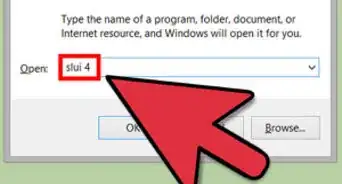
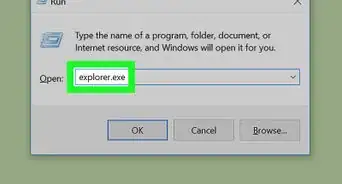
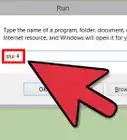
2Press the WIN + R keys at the same time, then type your search criteria into the dialog box.
-
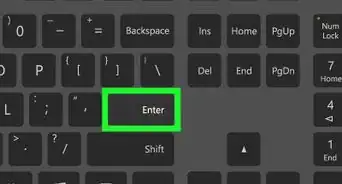
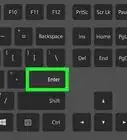
3Press “Enter” to execute your search. Windows 8 will search for installed programs and apps that match your search criteria.


Method 3
Method 3 of 4:Using the Desktop File Explorer
Method 3
-
1Press the WIN + D keys at the same time to access the Windows 8 desktop.
-
2Click on the “Folder” icon displayed in the taskbar. This will open a new session of File Explorer.
-
3Click on the “Search libraries” field, then type the name of the program you're searching for.
-
4Select the program when it displays in search results.[2]


Method 4
Method 4 of 4:Finding and Browsing All Apps
Method 4