X
wikiHow is a “wiki,” similar to Wikipedia, which means that many of our articles are co-written by multiple authors. To create this article, volunteer authors worked to edit and improve it over time.
This article has been viewed 1,706 times.
Learn more...
Are you worried about the annoying notification on your PC? If so, this wikiHow will help you to turn off app notifications in your Windows 10 computer.
Steps
-
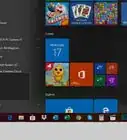
1Open the Settings App. Click on the Start menu and hit the gear icon from the left side of the Start menu. You can also see a shortcut to the Settings in the notification panel.
- Alternatively, press ⊞ Win+I to quickly launch the Settings panel.
-
2Open the System settings. Click the System icon from the settings panel to do it.
-
3Navigate to the notification settings. Select the Notifications & actions option from the left panel. This will lead to the notification center.
-
4Scroll down to the “Get notification from these senders” header. You will see the list of applications and other services which have permission to access your notifications.
-
5Disable the notifications of an application. Move to your preferred app and toggle off the blue switch. The blue switch will turn to grey after doing so. You will also see the “off” text alongside it when it's turned off. Finished!



-Step-17.webp)