X
wikiHow is a “wiki,” similar to Wikipedia, which means that many of our articles are co-written by multiple authors. To create this article, volunteer authors worked to edit and improve it over time.
The wikiHow Tech Team also followed the article's instructions and verified that they work.
This article has been viewed 3,348 times.
Learn more...
Windows 10 has a feature called Storage Sense, which allows you to free up storage space on your PC by clearing unnecessary system files automatically and manually. Storage Sense is useful to help free up your hard drive space, and, in severe cases, it can also help speed up your computer. To run and configure Storage Sense, follow the steps in this article.
Steps
-
1Open the Settings app. Click the Start button and select the Settings gear.
- Alternatively, you can search your PC for "storage" and select "Storage settings".
-
2Click the System category.
-
3Click the Storage subcategory. It's in the left pane.
-
4Select "Configure Storage Sense or run it now".
-
5Configure Storage Sense. You will see many options that you can specify for Storage Sense. First, make sure that Storage Sense is turned on . Then, select how often you want it to run by using the drop-down menu. The other settings are described below:
- Check the "Delete temporary files that my apps aren't using" checkbox to tell Storage Sense to remove various files that are no longer needed by the system.
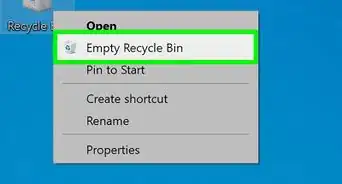
- Change the "Delete files in my recycle bin if they have been there for over:" drop-down menu if you'd like to specify a different period. However, the default setting is probably okay.
- Change the "Delete files in my Downloads folder if they haven't been opened for more than:" drop down menu to your liking. This is disabled by default but enabling it will clean up even more space.
- Change the OneDrive settings to your what you prefer. This will allow you to keep most of your files in the cloud while not wasting space on your computer for them.[1]
-
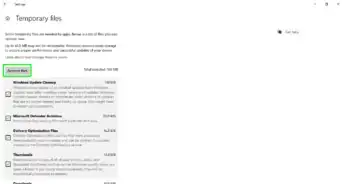
6Click Clean now. This will run Storage Sense and will delete all files that meet the criteria that you selected.


Warnings
- Files deleted by Storage Sense cannot be recovered.Thanks!

-Step-18.webp)


-Step-17.webp)