wikiHow is a “wiki,” similar to Wikipedia, which means that many of our articles are co-written by multiple authors. To create this article, volunteer authors worked to edit and improve it over time.
The wikiHow Tech Team also followed the article's instructions and verified that they work.
This article has been viewed 66,628 times.
Learn more...
Facebook continues its reign as the most popular social media site on the Internet. As such, so many people choose to announce events such as birthday parties, concerts, meetings, and all sorts of gathering using Facebook Events. However, there might be instances when an event is cancelled, and deleting the Facebook Event created for it is in order. On your laptop or desktop computer, you can easily delete posted events on Facebook, and save your friends a trip or two!
Steps
-
1Head for the Facebook website. From your laptop or desktop computer, open your favorite web browser by double-clicking on its icon on your desktop and type in www.facebook.com on the address bar. Hit Enter and you’ll be taken to Facebook’s home page.
-
2Log into your account. On the login page, enter your username and password into the text fields provided, and then click on the “Log In” button. You will then land on your home page.
- You must use a laptop or a desktop computer for this task. Smartphones currently do not support deleting events.
Advertisement -
3Go to the Events page. Once logged in, you will be directed to your Home page (not your Timeline)—also known as the News Feed, where you see your friends’ recent posts and top stories. Look to the left of the page, and on the leftmost column, search for the “Events” tab. Click on it to go to the Events page.
-
4Look for the event that needs to be deleted. On the Events page, you will see all your events ordered by date: both the ones you’re invited to, and the ones you’re hosting. Click on the tab that says “Hosting” at the top portion of the screen to display events you yourself posted. Find the one that got cancelled and needs to be deleted, and click on it to open up the Edit Event page.
-
5Cancel the event. To the right of the Edit Event page, you will a series of buttons. Click on the “Edit” button, and a box will pop up with options listed. Look for the blue “Cancel Event” button, and click on it.
-
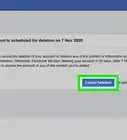
6Confirm deletion. Once you click on the “Cancel Event” button, a new window will pop up verifying if you’re sure about deleting your event. Click on “Yes” to proceed with the deletion and officially Facebook-cancel your party.Advertisement


Community Q&A
-
QuestionOn my Facebook page, I see an event from someone I do not know and am not friends with. Why is this here?
 Community AnswerMost likely this is an event that one of your friends has invited you to. You can click on the event and reject the invitation if you do not want to attend.
 -
QuestionHow do I delete an event from Facebook if an event from another page was added?
 Community Answer1. Go to your page. 2. Click events on the left hand side (not the top). 3. Scroll to the event you are looking to remove. 4. Click the black x in the corner to remove the other page's event. If you are not seeing the x, you are in a different view of "Events" probably from the top instead of the left hand side from your initial page.