X
This article was written by Nicole Levine, MFA. Nicole Levine is a Technology Writer and Editor for wikiHow. She has more than 20 years of experience creating technical documentation and leading support teams at major web hosting and software companies. Nicole also holds an MFA in Creative Writing from Portland State University and teaches composition, fiction-writing, and zine-making at various institutions.
This article has been viewed 6,003 times.
This wikiHow teaches you how to delete a shared Dropbox folder on your phone, tablet, or computer. You'll need to stop sharing the folder before you can delete it.
Steps
Method 1
Method 1 of 2:Using a Computer
Method 1
-
1Go to https://www.dropbox.com in a web browser. You can use any web browser, such as Chrome or Safari, to access Dropbox. To delete a shared folder, you’ll need to stop sharing it with other users first.
- If you’re not already signed in, sign in now.
-
2Click Files. It’s on the left side of the screen.
-
3Click Sharing. It’s on the left side of the screen.
-
4Click the Folders tab. The tabs appear under “Sharing” near the top of the screen. If you’re already on this tab, you can skip this step.
-
5Click … next to the folder you want to delete. A pop-up will appear.[1]
-
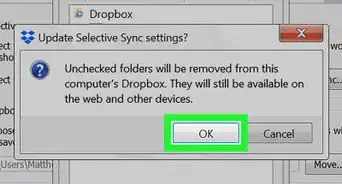
6Click Unshare folder. A confirmation message will appear.
- If you want other users to be able to keep copies of the files you are about to delete, check the box next to “Let removed members keep a copy of these files” before you continue.
-
7Click Unshare to confirm.
-
8Click … next to the folder you want to delete. This time you’ll see different options.
-
9Click Remove from Dropbox. A confirmation will appear (briefly) at the top of the screen, confirming that the folder is now deleted.


Method 2
Method 2 of 2:Using the Dropbox App on a Phone or Tablet
Method 2
-
1Open Dropbox. It’s the blue box icon on your home screen or in the app drawer (Android). To delete a shared folder, you’ll need to stop sharing it with other users first.
-
2Tap ☰. It’s at the top-left corner of the screen.
-
3Tap Files.
-
4Tap the folder you want to delete. The contents of the folder will appear.
-
5Tap the downward-pointing arrow in a circle. It’s at the top-right corner of the screen.
-
6Tap Shared folder settings. A list of users who can access this folder will appear.
-
7Tap Unshare. It’s at the bottom of the screen. A confirmation message will appear.
- If you want other users to be able to keep copies of the files you are about to delete, check the box next to “Let collaborators keep a copy of these files” before you continue.
-
8Tap Unshare to confirm. In a few moments, you’ll see a message that says “This folder is no longer shared.” Then you’ll be brought back to the contents of the folder.
-
9Tap the downward-pointing arrow in a circle. It’s at the top-right corner of the screen.
-
10Tap Delete. A confirmation window will appear.
-
11Tap Delete. The folder is now deleted.[2]


References
About This Article

Nicole Levine, MFA
Tech Specialist
This article was written by Nicole Levine, MFA. Nicole Levine is a Technology Writer and Editor for wikiHow. She has more than 20 years of experience creating technical documentation and leading support teams at major web hosting and software companies. Nicole also holds an MFA in Creative Writing from Portland State University and teaches composition, fiction-writing, and zine-making at various institutions. This article has been viewed 6,003 times.
How helpful is this?
Co-authors: 2
Updated: May 25, 2021
Views: 6,003
Categories: Dropbox