This article was co-authored by wikiHow Staff. Our trained team of editors and researchers validate articles for accuracy and comprehensiveness. wikiHow's Content Management Team carefully monitors the work from our editorial staff to ensure that each article is backed by trusted research and meets our high quality standards.
This article has been viewed 101,202 times.
Learn more...
To delete an email filter in Gmail, you just need to log in to your account and make a few simple adjustments to your settings.
Steps
-
1
-
2Enter your login info and sign in.
-
3Click on ⚙. It's the Settings icon located at the top right-hand corner of the page.
-
4Click Settings.
-
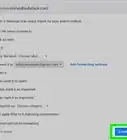
5Click the Filters and Blocked Addresses tab. You will see a list of all the email filters you've created below.
-
6Check the box next to the filter you want to delete.
-
7Click Delete. It's below the list of all your email filters.
-
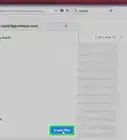
8Click OK. Your Gmail filter is now deleted. Your incoming mail will no longer be affected by this Gmail filter.


Community Q&A
-
QuestionIf I delete a filter where does the e-mail go?
 Community AnswerIt appears it will stay in the label. You will need to remove the label and recreate it or move all of the emails to the inbox to "start fresh" on a new filter. Note: removing a label will not delete the emails.
About This Article

1. Go to https://www.google.com/gmail/ on your computer.
2. Sign in to your account.
3. Open the Settings menu.
4. Click the Filters and Blocked Addresses tab.
5. Select the filter you want to delete.
6. Hit Delete.
7. Click OK.