This article was written by Darlene Antonelli, MA. Darlene Antonelli is a Technology Writer and Editor for wikiHow. Darlene has experience teaching college courses, writing technology-related articles, and working hands-on in the technology field. She earned an MA in Writing from Rowan University in 2012 and wrote her thesis on online communities and the personalities curated in such communities.
This article has been viewed 2,111 times.
After you've paired your AirPods with an iPhone or iPad, you can change the gesture commands. This wikiHow will teach you how to customize your AirPods using an iPhone or iPad.
Steps
Method 1
Method 1 of 2:Changing the Press-and-Hold Action
-
1Open your AirPods case. You'll want them to be on and connected to your iPhone or iPad so you can change the settings.
- AirPods Pro have three noise control modes: Active Noise Cancellation, Transparency mode, and Off. When you press and hold the force sensor located on the stem of the left or right AirPod, you, by default, can cycle through these settings. This method will show you how to change the default action of these buttons.
-
2Open Settings on your iPhone or iPad. You'll find this grey gear app icon on one of your Home screens or in the Dock.Advertisement
-
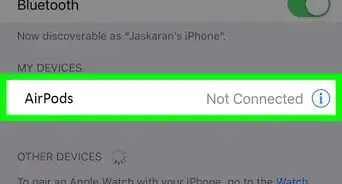
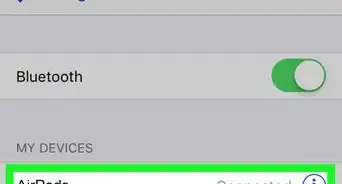
3Tap Bluetooth. This is usually located in the first grouping under your name next to a Bluetooth icon.
-
4
-
5Tap Left or Right under "Press and Hold AirPods." You'll then see a drop-down menu of all your options you can use for that AirPod's button.
- You can select to activate Siri on one ear while the other AirPod cycles through noise control modes.[1]
Advertisement


Method 2
Method 2 of 2:Changing the Double-Tap Action
-
1Open your AirPods case. You'll want them to be on and connected to your iPhone or iPad so you can change the settings.
- AirPods Pro have three noise control modes: Active Noise Cancellation, Transparency mode, and Off. When you press and hold the force sensor located on the stem of the left or right AirPod, you, by default, can cycle through these settings. This method will show you how to change the default action of these buttons.
-
2
-
3Tap Bluetooth. This is usually located in the first grouping under your name next to a Bluetooth icon.
-
4
-
5Tap Left or Right under "Double-Tap On AirPod." You'll then see a drop-down menu of all your options you can use for that AirPod.
- You can opt to activate Siri, play/pause the audio, skip to the next track, replay the previous track, or turn the AirPod off.
- The ability to double-tap an AirPod to skip to the next track or replay the previous track were introduced in iOS 11, so you need iOS 11 to use those features.[2]
Advertisement











References
About This Article

1. Open your AirPods case.
2. Open Settings on your iPhone or iPad.
3. Tap Bluetooth.
4. Tap the information icon next to your AirPods.
5. Tap Left or Right under "Press-And-Hold on AirPods or Double-Tap on AirPod.