X
wikiHow is a “wiki,” similar to Wikipedia, which means that many of our articles are co-written by multiple authors. To create this article, volunteer authors worked to edit and improve it over time.
This article has been viewed 1,309 times.
Learn more...
Python is a programming language that can be used to write a wide variety of programs. One such program is solving quadratic equations. If you're interested in creating a program that can solve quadratic equations, this wikiHow will guide you through the process.
Steps
-
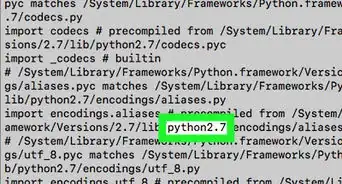
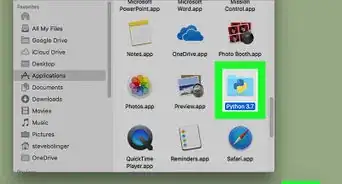
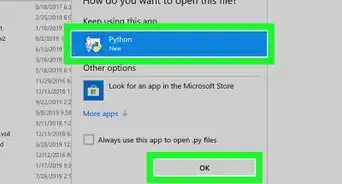
1Install and set up Python. Visit www.python.org and download the latest version of Python for your device (Windows, macOS, Linux).
- You will have multiple files for Python downloaded on your device. The file needed for this process is called “idle”, which the Python editor, though do not delete any other files since they are used as a reference for idle.
-
2Set up your program. Open idle from your downloaded files from python.org. You will now have the Python shell appear on your screen. On the file tab, select “New File”. Another application will open, which is the actual Python editor. On the Python editor, select “Save As” on the file tab. You can save the file as anything you prefer, such as "Solving Quadratic Equations".
-
3Import modules into Python. Many functions are not built into Python; therefore, you must import modules to run certain functions. For this program, you will need to import the math module to do basic math functions such as square roots. You do this by writing “Import math” on your Python editor.
-
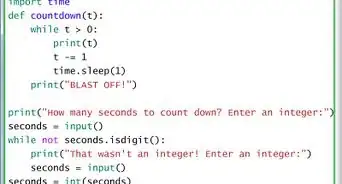
4Add comments. For every program that you code, you must have comments so you and other programmers can understand what each section of code does. Without comments, programs are very hard to understand. To add comments, you write “#” and then your comment. These comments do not affect Python and are only there for the programmers to read.
- On this program, write “#Solving Quadratic Equations”, so that the purpose of this program can be understood.
-
5Add print functions. Add a print function to print text on the program so that the users can understand what this program does. You can add print functions by adding “print(“Enter Text”)” - everything in between the quotes will be printed on the screen.
- For this program, write “print(“Enter ‘a’ ‘b’ and ‘c’ values to solve the quadratic equation (precise value)”)”. This statement, which will appear on the screen, will help the users understand what the program does and what the users need to do.
-
6Add input functions for user interference. Input functions are used for Python to store data from the keyboard. For example, when the user selects a number, the input function stores this data to a variable. Therefore, the input function must be assigned to a variable. You can add an input value by writing “a = input('Enter a value:')”. This function will now store the data into the variable “a”.
- For this program, add an input function and the “int” statement, so the user input becomes an integer to solve a quadratic equation. On the Python editor, write “a = int(input('Enter "a" value:'))”. This statement will print “Enter ‘a’ value:” so the users know to enter the a value of their equation.
- Repeat this step by entering “b = int(input('Enter "b" value:'))” and “c = int(input('Enter "c" value:'))”. Now the user will know to add all 3 values.
-
7Begin to solve the equations. Now that all 3 values required for the quadratic equation have been entered, it can now be solved. This will require multiple parts. Also, it is wise to have the quadratic formula next to you, so you know how to set up the values. For each mathematic statement, you will equal a value such as “val1” and then use two values for the next step of the equation.
- Add a comment to know that this part of the code is for solving the equations.
- The first part of the equations requires the b value to be negative, so set a value equal to “b” times “-1”, which will make the b value negative. So, on the Python editor, write “val1 = b * -1”.
-
8Start solving the equation by powering and subtracting. The second part of the equation is “b” powered to the 2 and subtracted by 4 times “a” times “b”. Add this on the editor by writing “val2 = (b**2)-(4*a*c)”.
-
9Continue solving the equation by square rooting. The third part of the equation requires you to square root “val2”. Use the installed math module to write “val3 = math.sqrt(val2)” on the Python editor. This will square root the value found earlier on.
-
10Add. The fourth part of the equation is adding or subtracting “val3”. Since this is 2 parts, make two equations, one for adding and one for subtracting. Write “val4 = val1 + val3” and “val5 = val1 - val3” on the Python editor.
-
11Multiply. The fifth part of the equation is the bottom part of the equation, which is multiplying the value “a” by 2. Write “val6 = 2*a”.
-
12Finish solving the equation by dividing. Lastly, divide the top and bottom. Since there are 2 values because of both adding and subtracting, make 2 equations using “val4”, which is the addition part, and “val5”, which is the subtraction part. Call these values the final answer because it is the last step. Write “finalAns = val4/val6” and “finalAns2 = val5/val6”. Now you have your 2 answers.
-
13Print your values. Now that you have your 2 answers, it is time to print. You will add print statements that print out the values on the screen. Write “print(finalAns)” and “print(finalAns2)”.
-
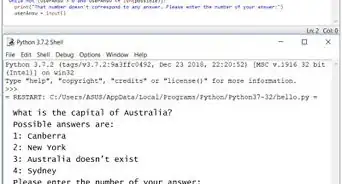
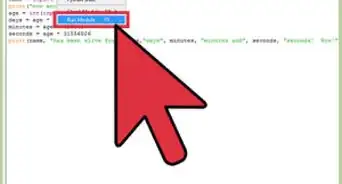
14Run your program. You can now run the program by clicking on the “Run” tab. Python will automatically run the program on the Python shell. The program will tell the user what this program does and enter the 3 values. The users will now enter their 3 values and click enter after each value. Now the program will run and print out the precise value of your equation.