X
wikiHow is a “wiki,” similar to Wikipedia, which means that many of our articles are co-written by multiple authors. To create this article, 21 people, some anonymous, worked to edit and improve it over time.
The wikiHow Tech Team also followed the article's instructions and verified that they work.
This article has been viewed 84,898 times.
Learn more...
Sometimes you create such an impressive presentation, or simply receive it attached with a mail from your close friend, you want to put it as screensaver, but end up with many options,including wallpapers. Browse through this article to put those Microsoft PowerPoint Presentations as a screensaver on your computer.
Steps
-
1Open the presentation, you want to make it appear as a screensaver.
-
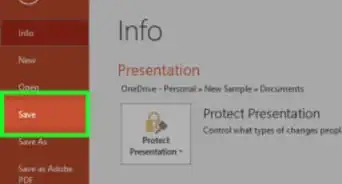
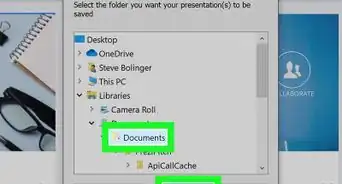
2Go to File menu > Save As > Browse through the window to an Empty folder, or simply create one.Advertisement
-
3Select Device Independent Bitmap from the Save as type drop-down box.
-
4Type the name of the new document in the field represented by File Name, and click on the Save button.
-
5Now right-click on the Desktop, and select Properties.
-
6Go to Screensaver tab, and select My Pictures Slideshow from the drop-down box, at the left of 'Settings' button.
-
7Click on the Settings button which will cause a window to appear. Change the source of the screensaver by clicking on the Browse button and selecting the previously created folder.
-
8Change other settings, if you want, and click on OK.
-
9Leave the computer inactive, so a brand-new Screensaver version of your Powerpoint presentation appears.Advertisement


Things You'll Need
- Microsoft PowerPoint

-Step-10.webp)





About This Article
Advertisement


-Step-10.webp)