X
wikiHow is a “wiki,” similar to Wikipedia, which means that many of our articles are co-written by multiple authors. To create this article, 50 people, some anonymous, worked to edit and improve it over time.
The wikiHow Tech Team also followed the article's instructions and verified that they work.
This article has been viewed 354,973 times.
Learn more...
Games are fun and many people like computer games, so why not impress your friends with a computer game you created yourself!
Steps
-
1Open Microsoft PowerPoint.
-
2Create a new, blank presentation by pressing Ctrl-N.
-
3Make sure the first slide's layout is the title slide.
-
4In the title box, name your new game. You may want to change the font to something more interesting.
-
5In the subtitle box, write "Click Here".
-
6Create a new slide, one with a title and text, by clicking Insert->New Slide.
-
7Highlight "Click Here" and link it to slide 2 by selecting it then right click and go to hyperlink.
-
8A box will pop up. You pick Place in This Document, pick slide titles, then slide 2.
-
9Create a scenario for this slide and create options to deal with the scenario. For example, slide 2 would look like: You are lost in a desert, do you:
- Look for water.
- Build a sandcastle.
- Shoot a camel.
- Do nothing.
-
10Highlight each option and link them to another slide that presents a new scenario. This new scenario will present the player with the consequences of his/her actions. There will be wrong choices and there will be right choices.
-
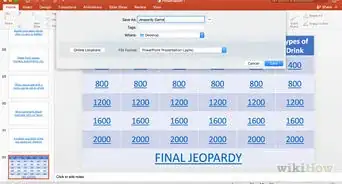
11Continue the chain of linked slides until you arrive at a final result. Enough wrong choices will lead to a slide that reads something like 'You Lose' and enough right choices will lead to a slide that says something like "Congratulations you win!"


Community Q&A
-
QuestionDoes a computer game work with mobile PowerPoint?
 Community AnswerThis is entirely up to if your mobile version of PowerPoint has hyperlinks. If it does not have hyperlinks that embed into the same presentation, you can't use this method. One thing to note is that most free versions of PowerPoint do not feature these hyperlinks.
 -
QuestionHow many slides will I need to create a game using PowerPoint?
 Community AnswerFor a simple game, not a lot. You just need to create enough slides for the amount of alternate outcomes you want.
 -
QuestionHow do I publish the game?Community AnswerYou would have to put a download link somewhere on the internet, either on your own website or another website that's interested in hosting your game.
-
QuestionCan I save the game and then load it when I start again?
 Community AnswerYou would have to make multiple presentations of each save point, accounting for every combination of events possible. Unless you're going to spend a years worth of time on it, or the game is strictly story choices, it would be pretty tough.
 -
QuestionHow do I create the graphics?
 Community AnswerOn Windows, use "Paint," or download a program such as GIMP and draw your pictures. On Mac, download GIMP.
 -
QuestionHow will the player know the result of the game?Community AnswerIt will come up at the end of the game, stating either YOU WIN!, or YOU LOSE!. It also depends on what you decide.
-
QuestionHow do I play the game?Community AnswerThe game is a type of game where you simply are given a scenerio like "go right or left", and you have options about which path you take.
-
QuestionCan more pictures be inserted?Community AnswerYes, pictures can be inserted you just need to go to the tab INSERT then well yeah that's it pretty much.
-
QuestionHow do I send a PowerPoint game I have created?Community AnswerThe way you would send a normal PowerPoint slideshow. I would recommend saving it and attaching it to an email.
-
QuestionHow do I show the score at the end of the PowerPoint game to the player?Community AnswerThat is very hard to do without coding. You should learn VisualBasic for Applications, and to gain access to coding instruments, enable the Developer tab.
Warnings
- If using PowerPoint 2007, you may have to click proof your game.Thanks!
- Some game genres may be offensive to some people so be careful.Thanks!