X
wikiHow is a “wiki,” similar to Wikipedia, which means that many of our articles are co-written by multiple authors. To create this article, volunteer authors worked to edit and improve it over time.
This article has been viewed 107,467 times.
Learn more...
Do you have a Dell laptop but don't know how much charge it has? Can't turn the laptop on? Just about to go outside and wait for the taxi? This is help you with that task!
Steps
-
1Take the laptop out of its case.
-
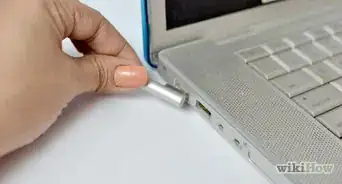
2Make sure it is off and not in sleep mode.
-
3Flip it over onto it's top so you are looking at the bottom.
-
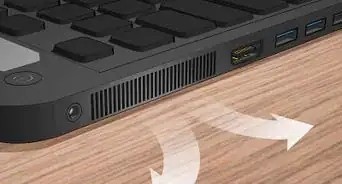
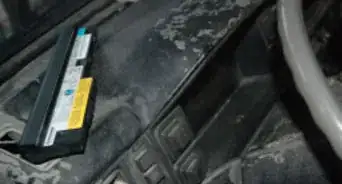
4To identify the battery: Newer models have it underneath. Look for a gray or black rectangle. Older models may have it at the front, where you put CD drives and such.
-
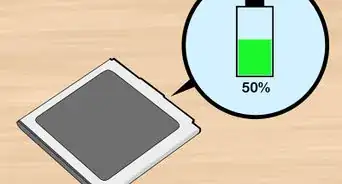
5For the newer ones that have the battery on the bottom, look on the battery for a little white rectangle with 5 lights on it. There will be a button next to them. Push it. The lights will come on. The number of lights will give you an estimation on how much it has left.5-Full. 4-80%. 3-60%. 2-40%. 1-20%. None-0%. If it is a half, the lights will stay on and the last one will blink. 4+1=90%. 3+1=70%. 2+1=50%. 1+1 =30%.
-
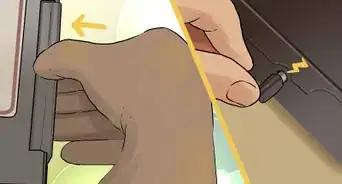
6For the older ones, take out the battery and look in the inside, where the connector is. There should be the same as above, a little pad with 5 lights on it. Do that same as above.


Community Q&A
-
QuestionWhy would a Dell laptop not work without a charger?
 Community AnswerMost probably the battery is dead. Try getting a replacement battery.
 -
QuestionHow can I tell if my laptop's battery is faulty?
 Community AnswerIf the battery can not go without a charge for long, if the battery percentage drop is more than 2% per minute on idle condition on average then you may need to change it. Also check for physical signs (is it swollen?).
 -
QuestionHow can I tell if a Dell laptop is charging when it is off?
 Community AnswerAn indicator light should turn on when the Dell laptop is plugged in and charging even if it is off.
 -
QuestionWhere is the plug-in port to charge the battery for a Dell laptop?Community AnswerIt should be on the side/front of the laptop. It generally looks circular. Most of the time it is placed on the left side of the laptop.
-
QuestionMy Dell Inspiron laptop charge indicator light blinks white, then 4 quick orange blinks. What does this mean?
 Glitchmasta47Community AnswerAssuming this happens when you press the power button, this means there is no power connected to the laptop.
 -
QuestionThe indicator at the bottom of screen is not there. What can I do?
 Community AnswerTurn off the laptop. Then before you go to log-in, check the bottom of the screen.
 -
QuestionHow will I know if the shut down laptop is charged?Community AnswerMany Dell batteries have a charge indicator comprising a row of LEDs activated by a touch button adjacent them. The more lights that come on, the higher the state of charge. This works with the battery in situ or removed.
-
QuestionWhere do I find the battery icon on my Dell?Community AnswerOnce your system starts, find it on the bottom right hand corner, just next to the speaker button on the left side.
-
QuestionWhat do I do if the charge of my laptop keeps becoming less and less after it's fully charged?Community AnswerSimply just start a routine. For an example: Charge the laptop up to 95% and run it down to 15%.
-
QuestionJust received my new Inspiron 15 5000 laptop. Do I just plug it in and charge for 24 hours, or should it also be turned on?Rudy TothCommunity AnswerIt be best if you just plug it in and let it charge for the 24 hour period. Check upon it once a while. At the hour 23:45, turn on the computer to see how far the charge has reach too on the menu bar where your battery indicator might be located? It might say... 100% fully charged.
Things You'll Need
- Dell Laptop