X
This article was written by Nicole Levine, MFA. Nicole Levine is a Technology Writer and Editor for wikiHow. She has more than 20 years of experience creating technical documentation and leading support teams at major web hosting and software companies. Nicole also holds an MFA in Creative Writing from Portland State University and teaches composition, fiction-writing, and zine-making at various institutions.
This article has been viewed 8,364 times.
This wikiHow teaches you how to update your Viber profile photo (also known as an avatar) from your PC or Mac.
Steps
-
1
-
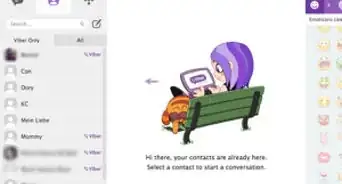
2Click ⋯. It’s the third icon from the left near the top of Viber. Your profile will expand in the left column.
-
3Click your current profile photo. It’s at the top of the left column. If you haven’t set one up, click the gray icon with a white outline of a person inside.
-
4Navigate to the folder that contains the photo you want to use.
-
5Click the photo once. This selects/highlights it.
-
6Click Open. The photo will upload to Viber and appear in the “Move and scale” window.
-
7Drag the crop tool to the desired part of the photo. The part of the photo within the boundaries of the crop tool (the square) will be used as your profile image. Resize the square by dragging the corner dots in or outward.
-
8Click Done. The cropped image now replaces your previous profile photo.



About This Article

Nicole Levine, MFA
Tech Specialist
This article was written by Nicole Levine, MFA. Nicole Levine is a Technology Writer and Editor for wikiHow. She has more than 20 years of experience creating technical documentation and leading support teams at major web hosting and software companies. Nicole also holds an MFA in Creative Writing from Portland State University and teaches composition, fiction-writing, and zine-making at various institutions. This article has been viewed 8,364 times.
How helpful is this?
Co-authors: 2
Updated: August 26, 2018
Views: 8,364
Categories: Viber for Computers
Article SummaryX
1. Open Viber.
2. Click ⋯.
3. Click the current photo.
4. Navigate to the new photo.
5. Click the photo once.
6. Click Open.
7. Crop the photo.
8. Click Done.
Did this summary help you?