X
wikiHow is a “wiki,” similar to Wikipedia, which means that many of our articles are co-written by multiple authors. To create this article, 12 people, some anonymous, worked to edit and improve it over time.
This article has been viewed 75,490 times.
Learn more...
By default, Mozilla Firefox saves downloaded files to the Downloads folder on your computer. However, many people prefer to have their files downloaded to the desktop or documents folder. Luckily, Firefox allows you to save your downloaded files anywhere you want. This article will teach you how to change where downloaded files are saved in Firefox.
Steps
-
1Open Firefox.
-
2Click ☰. It's in the top-right corner of the Firefox window. A drop-down menu will appear.Advertisement
-
3Select "Options" in the drop-down menu.
-
4Scroll down to the Files and Applications section.
-
5Click Browse.
-
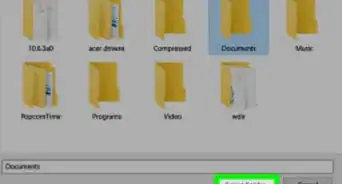
6Navigate to where you want to save your downloaded files.
-
7Click Select Folder. The folder that you selected is now the default download folder for Firefox.Advertisement


Community Q&A
-
QuestionEYTD does not follow FF instructions. It always saves to download folder, even when I select the 'Always ask me where to save files' option in preferences. What do I do?
 ParodyStarCommunity AnswerMaybe where you are sending the files to could be the problem? For example, if you are sending it to Adobe Acrobat, but the subscription has ended, then it could have this problem. Try changing the destination.

-Step-20.webp)


About This Article
Advertisement


-Step-20.webp)