This article was co-authored by wikiHow Staff. Our trained team of editors and researchers validate articles for accuracy and comprehensiveness. wikiHow's Content Management Team carefully monitors the work from our editorial staff to ensure that each article is backed by trusted research and meets our high quality standards.
The wikiHow Tech Team also followed the article's instructions and verified that they work.
This article has been viewed 14,380 times.
Learn more...
This wikiHow teaches you how to edit the phone number on your Viber profile, and verify a new number without losing any of your chat history, using Android.
Steps
-
1Open Viber Messenger on your Android. The Viber icon looks like a purple speech bubble with a white phone in it. You can find it on your Android's Apps menu.
-
2Tap the ☰ icon on the top-left. Your profile menu will slide in from the left-hand side.
-
3Tap Settings. This will open your Settings menu on a new page.
-
4Tap Account. This will open your Account Settings on a new page.
-
5Tap Change Phone Number. This option will allow you to edit your phone number on your Viber account.
-
6Tap CONTINUE under the "New phone number" heading. This option lets you change your phone number without losing any of your chat history or contact data.
- Alternatively, you can tap CONTINUE under the "New phone number and new device" heading. This option will allow you to back up your data before changing devices.
-
7Tap CONTINUE in the pop-up. This will allow you to change your number on a new page.
-
8Enter your new phone number. Tap the "Phone number" field, and type your new phone number here.
- Make sure to include the correct country code at the beginning of your number, or select your country from the drop-down menu.
-
9Tap the purple CONTINUE button. You will have to confirm your new phone number in a pop-up window.
-
10Tap YES in the confirmation pop-up. This will send an SMS text message to your new phone number with a 6-digit verification code.
-
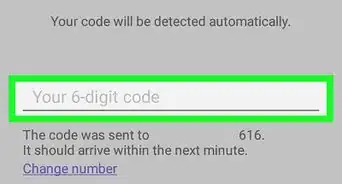
11Enter your 6-digit verification code. Find your verification code in the automated text message from Viber, and enter it here. This will automatically verify and activate your new number.



About This Article

1. Open Viber.
2. Tap the "☰" icon.
3. Tap Settings and select Account.
4. Tap Change Phone Number.
5. Tap CONTINUE under New phone number.
6. Tap CONTINUE.
7. Enter your new number, and tap CONTINUE.
8. Tap YES.
9. Enter your 6-digit code to verify.