X
This article was co-authored by wikiHow staff writer, Jack Lloyd. Jack Lloyd is a Technology Writer and Editor for wikiHow. He has over two years of experience writing and editing technology-related articles. He is technology enthusiast and an English teacher.
This article has been viewed 397,817 times.
Learn more...
This wikiHow teaches you how to prevent someone from emailing you by blocking their email address in Microsoft Outlook (formerly known as Hotmail). You cannot block a sender's email address from within the mobile app.
Steps
-
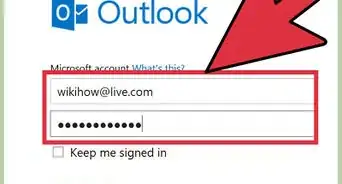
1Open the Outlook website. Doing so will open your inbox if you're logged into Outlook.
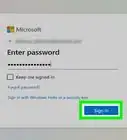
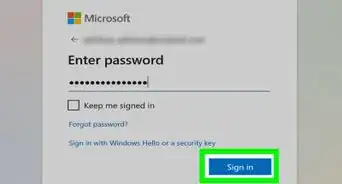
- If you aren't already logged in, click Sign in, enter your email address (or phone number) and password, and click Sign in.
-
2Click ⚙️. It's in the top-right corner of the Outlook page.
-
3Click Options. You'll find it at the bottom of the drop-down menu below the Settings "gear" icon.
-
4Click Blocked senders. It's beneath the "Junk email" heading, which is a subfolder of the "Mail" category. You'll find this option on the bottom-left side of the page.
-
5Click the "Enter a sender or domain here" field. It's in the middle of the page. This is where you'll type in the email address of the person whom you wish to block.
-
6Type in a sender's email address. Be sure to include the complete address, such as username@email.com.
-
7Press ↵ Enter. Doing so will add the desired email address to Outlook's block list.
- You can also click the + icon to the right of the email address field.
-
8Click Save. It's at the top of the page, directly above the "Blocked senders" heading. Doing so will save your changes and prevent any future attempts from your blocked sender to contact you.


Community Q&A
-
QuestionHow can I block all emails coming from the same address?
 Community AnswerUse * as a wildcard, e.g *@badaddress.com.
 -
QuestionIf I block someone's email, will all previous mail from them also be deleted?
 Community AnswerNo. Just delete all emails from that sender and they will be automatically be deleted going forward.
 -
QuestionDoes the sender get notified that the email wasn't delivered?
 Community AnswerThey don't exactly get notified. It just won't say that it was delivered, but it will just seem like you haven't checked your emails.
 -
QuestionI am getting emails with no email attached, so I can't block them. What should I do?
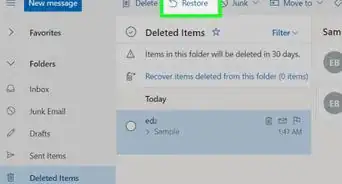
 Community AnswerRight-click on the unwanted mail and left-click on "View Message Source." Somewhere you will see "Sender's IP is..."' followed by a series of numbers and spaces/dots. Carefully select that IP address (but don't pick up any brackets) and copy it. Close that window, go to the Settings (by clicking on the cogwheel icon on the top right), and click on "Options." Then, follow points 4 - 8 above. (Enter the IP address, point 6, using Ctrl+V.) If you have trouble getting back to your inbox, use "back" or "refresh" once or twice each, or sign out and back in again.
 -
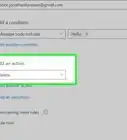
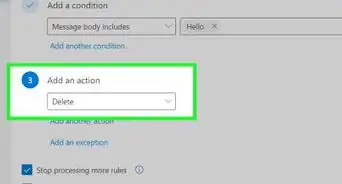
QuestionIs there a way to block someone from the email itself?Community AnswerNot in so many words, though you can click the "..." button at the top of the email, select "Create rule", and change the conditions for any email from that sender to be moved to the Trash folder immediately.
Warnings
- Make sure the people you block are legitimately spammers before doing so.Thanks!
About This Article

Jack Lloyd
wikiHow Staff Writer
This article was co-authored by wikiHow staff writer, Jack Lloyd. Jack Lloyd is a Technology Writer and Editor for wikiHow. He has over two years of experience writing and editing technology-related articles. He is technology enthusiast and an English teacher. This article has been viewed 397,817 times.
How helpful is this?
Co-authors: 13
Updated: June 8, 2020
Views: 397,817
Categories: Hotmail
Article SummaryX
1. Open Outlook.
2. Click ⚙️.
3. Click Options.
4. Click Blocked senders.
5. Type an email address into the "Enter a sender or domain here" field.
6. Press ↵ Enter or click +.
7. Click Save.
Did this summary help you?