This article was written by Jack Lloyd. Jack Lloyd is a Technology Writer and Editor for wikiHow. He has over two years of experience writing and editing technology-related articles. He is technology enthusiast and an English teacher.
The wikiHow Tech Team also followed the article's instructions and verified that they work.
This article has been viewed 184,744 times.
This wikiHow teaches you how to block a contact in Microsoft Outlook (formerly known as Hotmail). Blocking a contact in Outlook is quite easy. You don't even have to delete the contact if you don't want to. Blocking is normally immediate, but if the servers are experiencing a heavy load it might take a while. If you want to block a contact in Outlook, then follow the steps in this article.
Steps
Method 1
Method 1 of 2:Blocking an Email Address
-
1
-
2Scroll down and click View all Outlook settings. It's a link in the drop-down menu. Doing so opens a pop-up window.
- You may not need to scroll down to see this link.
Advertisement -
3Click the Mail tab. It's in the upper-left side of the window.
- It will likely be selected by default.
-
4Click Junk email. You'll find this in the middle column of options.
-
5Click on "+ Add" to open the text box. In the text box, you can block an individual sender, or an entire domain.
- If the person you are blocking has their own email domain, then you can just block the whole domain to help prevent block evasion.
-
6Enter the email address or domain that you want to block into the box.
-
7Press ↵ Enter. This will add the email to your block list.
-
8Click Save at the bottom right of the pop-up box. You can now close the box by clicking the X in the top right corner.Advertisement


Method 2
Method 2 of 2:Using Email Rules for Block Evasion
If the person you blocked figures out that you blocked them, then they might try to create or use a different email to circumvent the block. Luckily, you can use email filters to help prevent this.
-
1
-
2Scroll down and click View all Outlook settings. It's a link in the drop-down menu. Doing so opens a pop-up window.
- You may not need to scroll down to see this link.
-
3Click the Mail tab. It's in the upper-left side of the window.
- It will likely be selected by default.
-
4Select "Rules".
-
5Click on "+ Add new rule".
-
6Enter the name of your rule. You can name it something like "Block (user)" or something else.
-
7Select a condition. Think about something in the emails that's similar. Do they have similar sender addresses. For example, do they have (blocked name)123@example.com and then they use (blocked name)235@example.com? Do they have similar subjects, or similar phrases or words in them?
- If any of these apply to you, click on the conditions box, and then select the appropriate option in the Keywords category.
- Select "Message body includes" if the email contains similar words or sentences. Then type the words or phrases in the box.Then press ↵ Enter.
- Select "Sender address includes" if the email addresses are all similar. Then type the similar text in the addresses into the box.Then press ↵ Enter.
- If the subjects are similar, then select "Subject includes" under the "Subject" category and then enter the similar words or phrases into the box. Then press ↵ Enter.
- You can try other conditions if they apply to you.
- If any of these apply to you, click on the conditions box, and then select the appropriate option in the Keywords category.
-
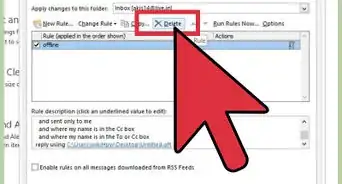
8Chose an action. Click on the box under "Add an action" to bring up a list of actions. Select "Delete" to send all emails that match the filter to the deleted folder.Advertisement


Community Q&A
-
QuestionCan the sender see if they are blocked?
 Community AnswerNo, they will just not be able to email or contact you. Only you can see that they are blocked.
 -
QuestionI have messages saved in a folder from this person I wish to block - will they be deleted?
 Community AnswerNo. Messages that don't go to junk/spam can only be deleted if YOU do so. Because those messages are saved separately, they will stay until you decide to delete them. Once you block the sender, the emails which they send you in the future will either go to junk/spam, straight to trash, or not reach you at all. Your saved messages will remain.
 -
QuestionIf a sender is blocked, will their emails appear anywhere?
 R2_d2000Top AnswererNo, if a sender is blocked via the blocked list, then the emails will not be anywhere in your email. If you use an email rule, then the messages will be in your deleted folder.
 -
QuestionWhen the blocked person tries to send an email to me, what will it show on their end?R2_d2000Top AnswererNothing. To them, it will look like the email was sent, but the email will never actually reach you.
Warnings
- If you create an email rule that is too broad, then you might end up deleting legitimate emails.Thanks!
About This Article
1. Log in to Outlook.com.
2. Click Settings.
3. Click View all Outlook settings.
4. Click Mail.
5. Click Junk email.
6. Click Add.
7. Enter the email address.
8. Press Enter.
9. Click Save.