This article was written by Nicole Levine, MFA. Nicole Levine is a Technology Writer and Editor for wikiHow. She has more than 20 years of experience creating technical documentation and leading support teams at major web hosting and software companies. Nicole also holds an MFA in Creative Writing from Portland State University and teaches composition, fiction-writing, and zine-making at various institutions.
The wikiHow Tech Team also followed the article's instructions and verified that they work.
This article has been viewed 6,049 times.
This wikiHow teaches you how to prevent a Facebook Group from notifying you of new activity on your iPhone or iPad. You’ll have the option to turn off notifications, unfollow the group (which also removes it from your news feed), or leave the group completely.
Steps
Method 1
Method 1 of 3:Unfollowing the Group
-
1Open Facebook on your iPhone or iPad. It’s the blue icon with a white “f” inside. You’ll usually find it on the home screen. Unfollowing a group allows you to retain membership while removing updates from your news feed.
-
2Go to the group. To find it, type its name into the search bar, tap the search button, then tap the group’s name.
- Another way to find the group is to tap ☰, then scroll down and tap Groups.
Advertisement -
3Tap Joined. It’s near the top-left corner of the group.
-
4Tap Unfollow. Though you’re still a member of this group, you will no longer see updates in your news feed or be notified of new group activity. You can still participate in the group.Advertisement


Method 2
Method 2 of 3:Turning Off Notifications
-
1Open Facebook on your iPhone or iPad. It’s the blue icon with a white “f” inside. You’ll usually find it on the home screen. Disabling notifications for the group allows you to remain a group member without being bothered by sound and visual notifications of new activity.
- You will still see group activity in your news feed.
-
2Go to the group. To find it, type its name into the search bar, tap the search button, then tap the group’s name.
- Another way to find the group is to tap ☰, then scroll down and tap Groups.
-
3Tap Joined. It’s near the top-left corner of the group.
-
4Tap Edit notification settings.
-
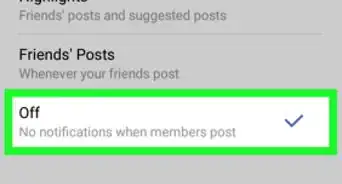
5Select Off for “In-app notifications.”
-
6Select Off for “Push notifications.” You have now disabled sound and visual notifications for this particular group. You can still interact with the group as always.Advertisement


Method 3
Method 3 of 3:Leaving the Group
-
1Open Facebook on your iPhone or iPad. It’s the blue icon with a white “f” inside. You’ll usually find it on the home screen.
-
2Go to the group. To find it, type its name into the search bar, tap the search button, then tap the group’s name.
- Another way to find the group is to tap ☰, then scroll down and tap Groups.
-
3Tap Joined. It’s near the top-left corner of the group.
-
4Tap Leave Group. A confirmation message will appear.
-
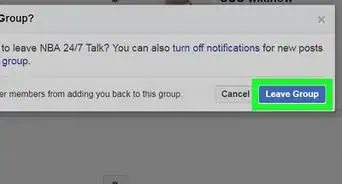
5Tap Leave Group to confirm. Now that you’ve removed yourself from the group, you will not receive notifications of new activity.Advertisement




About This Article