This article was co-authored by wikiHow Staff. Our trained team of editors and researchers validate articles for accuracy and comprehensiveness. wikiHow's Content Management Team carefully monitors the work from our editorial staff to ensure that each article is backed by trusted research and meets our high quality standards.
The wikiHow Tech Team also followed the article's instructions and verified that they work.
This article has been viewed 13,710 times.
Learn more...
This wikiHow teaches you how to sort and edit your Facebook groups, using a desktop internet browser.
Steps
-
1Open Facebook on your internet browser. Type www.facebook.com in your browser's address bar and hit ↵ Enter on your keyboard. Facebook will open up to your News Feed.
- If you're not automatically logged into Facebook on your browser, enter your email or phone and your password to log in.
-
2Click Groups on the left navigation panel. This option is listed next to a blue-and-white icon of three figureheads under the EXPLORE heading. It will open your Groups Discover page.
-
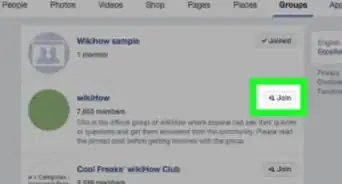
3Click the Groups tab. It's in the upper-left corner of your screen. The Groups page will open up to the Discover tab. Switch to the Groups tab to see a list of all the groups you're a member of.
-
4Click the gear icon next to a group. Your Groups are organized in three sections titled Favorites, Groups You Manage, and Your Groups.
- Select Add to Favorites if you want to add a group to your Favorites list. This option will be replaced with Remove from Favorites for groups that are already in your Favorites.
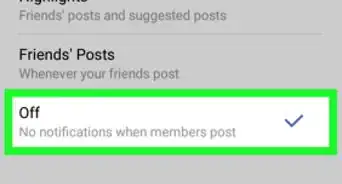
- Select Edit Notification Settings if you want to change what you want to receive notifications about from this group. You will have four options including All Posts, Highlights, Friends' Posts, and Off.
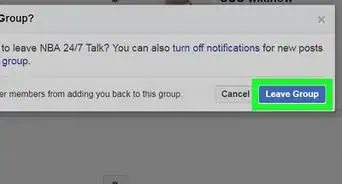
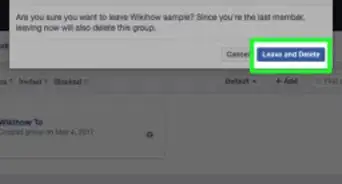
- Select Leave Group if you no longer want to be a member of this group. It will remove you from the group, and the group will disappear from your Groups page.
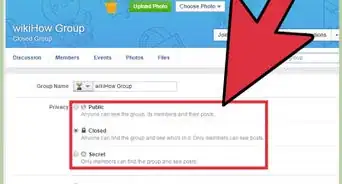
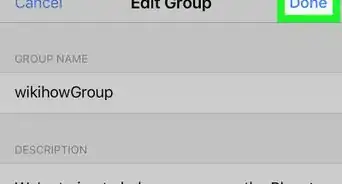
- Select Edit Group Settings if you want to change the group name, type, description, tags, privacy settings and other group info. You will have this option only for the groups you manage as an admin.



About This Article

1. Open Facebook on an internet browser.
2. Click Groups under EXPLORE on the left panel.
3. Click the Groups tab in top-left.
4. Click the gear icon next to a group to see your options.