This article was written by Nicole Levine, MFA. Nicole Levine is a Technology Writer and Editor for wikiHow. She has more than 20 years of experience creating technical documentation and leading support teams at major web hosting and software companies. Nicole also holds an MFA in Creative Writing from Portland State University and teaches composition, fiction-writing, and zine-making at various institutions.
This article has been viewed 35,328 times.
If you don’t want a Twitter user to be able to interact with you, try Twitter’s built-in “Block” feature. Blocking a Twitter user makes it so they cannot send you direct messages, follow (or see) your tweets, or tag you in photos. Learn how to prevent someone from interacting with you on Twitter using the mobile app (iOS and Android) or the Twitter website.
Steps
Method 1
Method 1 of 2:Using the Mobile App
-
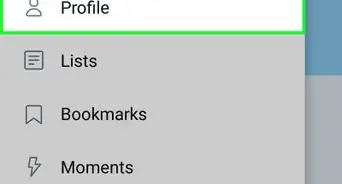
1Open the profile of the user you would like to block.[1] Blocking someone on Twitter makes it so you can no longer interact with that person, and vice-versa.
- The person you block will not receive any notification that they have been blocked. If they try to view your tweets, however, they will see a message that says
- If the person you block logs out of Twitter and your tweets are not protected, they will be able to view your tweets.[2]
-
2Tap the gear icon (iOS) or ⋮ (Android). This will expand a menu with various options.Advertisement
-
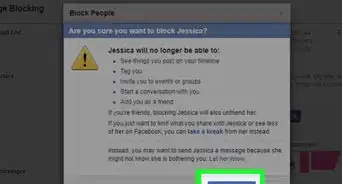
3Select “Block” from the menu. A confirmation screen will appear.
-
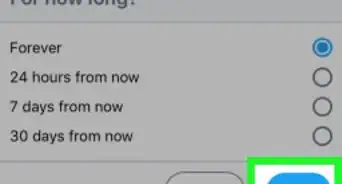
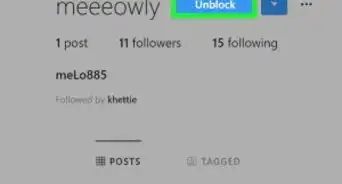
4Tap “Block” again to confirm. To make sure the account is blocked, visit the user’s profile page. The button that used to say “Follow” should now say “Blocked.”
- To unblock an account, return to the user’s profile and tap the “Blocked” button. You will be prompted to confirm that you want to unblock this user. Click “Unblock” if you want to proceed.
-
5View your block list. You can see a list of everyone you have blocked in your block list. You will also be able to unblock users here by clicking the “Block” button next to their user names.[3]
- Tap the gear icon (iOS) or the ⋮ (Android) icon on the “Me” tab.
- Tap “Privacy and Content.” (Some versions of the app have to tap “Settings” before they see “Privacy and Content.”
- Tap “Blocked Accounts” to view the list.
Advertisement


Method 2
Method 2 of 2:On the Web
-
1Sign into your Twitter account. Blocking a user on Twitter will prevent them from being able to interact with you on the site.
- The person you block will not receive any notification that they’ve been blocked.
- If the person you block logs out of Twitter and your tweets are not protected, they will be able to view your tweets.
-
2Navigate to the profile of the user you would like to block.
-
3Click the ⋮ icon at the top right corner of the user’s profile. This will expand a menu containing various options.
-
4Click “Block @Username” in the menu. A confirmation window will appear.
-
5Click “Block” again to confirm.
- To unblock the account, return to the user’s profile page and tap the “Blocked” button. You will be prompted to confirm—click “Unblock” again if you want to proceed.
-
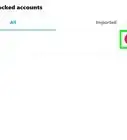
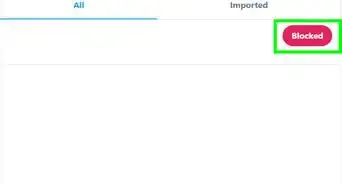
6View a list of every account you have blocked. Click your profile image at the top of the screen and select “Settings and privacy” Select “Blocked Accounts” from the left menu to view the list.
- To unblock a user, click “Blocked” next to the user’s Twitter handle.
Advertisement


Community Q&A
-
QuestionIf I block someone on Twitter, can that person see my tweets?
 WRMCommunity AnswerNot while they are logged into that blocked account. If your tweets are "public" (in other words, not "protected") then that person could see them if they log out of the blocked account.
 -
QuestionIf I blocked a stalker on Twitter, how can I stop her from seeing me ?
 R2_d2000Top AnswererIf you blocked them, then they will not be able to see your account when they are logged in. If you want them to stop seeing your entire Twitter account, then you need to protect your tweets.


References
About This Article

1. Open the Twitter app.
2. Go to the person's profile.
3. Tap the gear or three-dot icon.
4. Tap Block.
5. Tap Block.