X
This article was co-authored by wikiHow Staff. Our trained team of editors and researchers validate articles for accuracy and comprehensiveness. wikiHow's Content Management Team carefully monitors the work from our editorial staff to ensure that each article is backed by trusted research and meets our high quality standards.
The wikiHow Tech Team also followed the article's instructions and verified that they work.
This article has been viewed 10,238 times.
Learn more...
This wikiHow teaches you how to automatically save every screenshot you take on your computer to a Screenshots folder in your Dropbox, using Dropbox's desktop app.
Steps
-
1Find and click the Dropbox icon in your notification area. The Dropbox icon looks like a tiny box next to the battery, wi-fi, and sound icons on your desktop. A new window will pop up.
- On Windows, the notification area is in the lower-right corner of your taskbar at the bottom of your screen.
- On a Mac, you can find it on your menu bar in the upper-right corner of your screen.
-
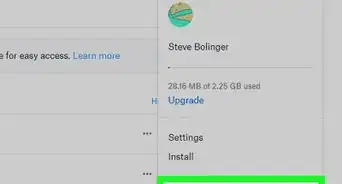
2Click the gear icon in the pop-up. This button is in the upper-right corner of the pop-up box. It will open a drop-down menu.Advertisement
-
3Click Preferences on the menu. This will open your app preferences in a new window.
-
4Click the Import tab. This tab looks like three picture icons at the top of the preferences window.
-
5Click and check the box next to Share screenshots using Dropbox. When this option is enabled, all of your screenshots will be automatically saved to a Screenshots folder in your Dropbox.
- If you've just installed the Dropbox app, take a screenshot before you open Preferences. A new pop-up will ask if you want to save your screenshots to Dropbox. In this case, click Save Screenshots to Dropbox here.
-
6Click the Apply button in the lower-right corner. This will save your new settings. All of your screenshots will now be automatically saved to your Dropbox.
- If you're using a Mac and don't see this button, you can skip this step. Your new settings will be saved automatically.
Advertisement



About This Article

wikiHow Staff
wikiHow Staff Writer
This article was co-authored by wikiHow Staff. Our trained team of editors and researchers validate articles for accuracy and comprehensiveness. wikiHow's Content Management Team carefully monitors the work from our editorial staff to ensure that each article is backed by trusted research and meets our high quality standards. This article has been viewed 10,238 times.
How helpful is this?
Co-authors: 1
Updated: February 26, 2018
Views: 10,238
Categories: Dropbox | Screenshots
Advertisement