X
wikiHow is a “wiki,” similar to Wikipedia, which means that many of our articles are co-written by multiple authors. To create this article, volunteer authors worked to edit and improve it over time.
This article has been viewed 18,644 times.
Learn more...
While making websites, there are certain things to keep in mind, one of them being making your site interesting to viewers. With Dreamweaver, an HTML editing program, it is easy to convert an image to a link. This article will show you how that's done!
Steps
-
1Open Dreamweaver. Open an existing file or define a new site and create a new HTML file, if you haven't already done that.
-
2When you create a new HTML file, Dreamweaver will already create a basic webpage structure for you. Enter your cursor somewhere between the <body> and </body> tags.Advertisement
-
3Insert the image you want. There are three alternative methods for doing this:
- Go to the 'Insert' panel at the top. Click 'Image' and select 'Image' from the sub-menu that appears.
- Towards the right, there is a bar with 'Insert' and 'Files' written on top. Click 'Select' and then click 'Common' from the drop-down menu. Now, insert the image by clicking 'Image'. If that bar doesn't appear, click where 'Compact' or 'Expanded' workspace is written. Click 'Compact', then 'Reset Compact' to reset Dreamweaver's default settings.
- Press Ctrl+Alt+I on your keyboard.
-
4Adjust the size of your image by entering the number of pixels on the 'Width' and 'Height' fields.
-
5Go to the 'Design' mode to see what your image looks like. Click 'Live' to see how it will actually look like in your website.
-
6Click on the image. In the 'Properties' panel, you will see a blank field that says 'Link'. Enter the link of your webpage, (for example - https://www.wikihow.com/) but don't forget the "http://" prefix! From the 'Target', select '_blank' if you want it to open in a new browser tab or window.
-
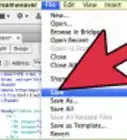
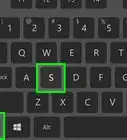
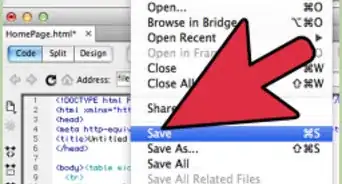
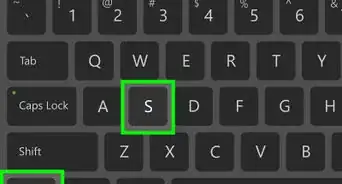
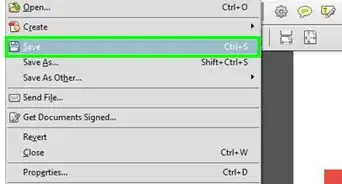
7Save your web page by pressing Ctrl+S (Save) or Ctrl+⇧ Shift+S (Save As).Advertisement


Warnings
- Entering invalid links will result in broken links.Thanks!
Advertisement
About This Article
Advertisement