This article was co-authored by wikiHow Staff. Our trained team of editors and researchers validate articles for accuracy and comprehensiveness. wikiHow's Content Management Team carefully monitors the work from our editorial staff to ensure that each article is backed by trusted research and meets our high quality standards.
The wikiHow Tech Team also followed the article's instructions and verified that they work.
Learn more...
This wikiHow teaches you how to install the Specto add-on to the Kodi media player. You can install Specto on all the platforms available to Kodi, including Windows, Mac, Linux, Android, and iOS. In order to install the Specto add-on, you will first have to enable the unknown sources option in Kodi's settings, and add a new file source to your Kodi file manager. This will allow you to download Specto's contents from the online file source, and install the add-on to your phone, tablet or computer.
Steps
Part 1
Part 1 of 3:Enabling Unknown Sources
-
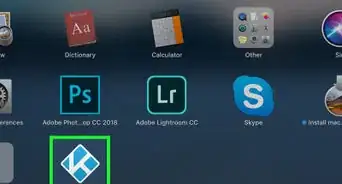
1Open the Kodi app. You can download and use Kodi on any computer, phone or tablet running Windows, Mac, Linux, Android or iOS.
- You can download the app from Kodi's official website.
-
2
-
3Select System on the menu. This option looks like a gear and a screwdriver in the lower-right corner. It will open your system settings on a new page.
-
4Select Add-ons on the left-menu. You can change your add-on settings here.
-
5


Part 2
Part 2 of 3:Adding a File Source
-
1Click or tap the Settings / System heading on the top-left. This will take you back to the System menu where you can see all your setting categories.
- If you're using a computer, you can just press Esc on your keyboard to go back.
-
2Select File Manager on the menu. This option looks like a white folder icon in the upper-left corner of the System page.
-
3Select Add source. This option allows you to add a new source to your Kodi. It will open a new pop-up window.
-
4Click or tap <None> in the pop-up. You can find it in the text box in the "Add file source" pop-up. It will prompt you to enter a media location.
-
5Type http://androidaba.com/addons/ into the text field. Make sure to enter the same exact URL link into the box here.
- Click or tap OK to confirm.
- This link will now replace "<None>" in the "Add file source" window.
-
6Type aba into the name field at the bottom. Click, tap or select the name field at the bottom of the "Add file source" window, and type "aba" as the source name here.
- You can write any other name you would like here. This name will help you recognize and identify the media source you're adding to Kodi.
-
7Click or tap OK in the "Add file source" window. This will add the "aba" folder to your file manager.


Part 3
Part 3 of 3:Installing Specto
-
1Go back to Kodi's main menu. Click or tap the heading on the top-left, or press Esc to go back.
- If you're on the File Manager page, you will have to go back twice before you're on the main menu.
-
2Click or tap Add-ons on the left-menu. This option is listed next to an open box icon on the navigation menu on the left. It will open your add-on options.
-
3Click or tap the open box icon on the top-left. You can find this button below the "Add-ons" heading in the upper-left corner.
-
4Select Install from zip file. This will open all your available file sources in a new pop-up.
-
5Select aba on the list. This will open the selected source's contents.
- If you've named this file source differently, it'll show up by your custom name here.
-
6Select repository. This will open the aba repository's contents.
-
7Select the "repository.kodil.zip" file in the repository. This will install the Kodil repository to your Kodi.
- You'll see a message saying "Add-on installed" on the top-right of your screen.
-
8Select Install from repository. It's above the "Install from zip file" option in your add-on options. It will open a list of all your available repositories.
-
9Select Kodil repository on the list. This will open the categories of the selected repository.
-
10Select Video add-ons. This will open a list of all the available video add-ons you can install from this repository.
-
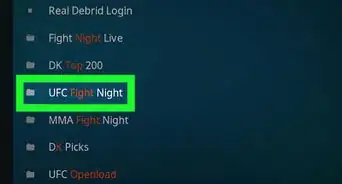
11Scroll down and select Specto on the list. This will open the Specto add-on's details on a new page.
-
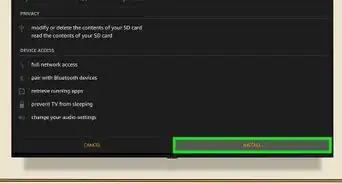
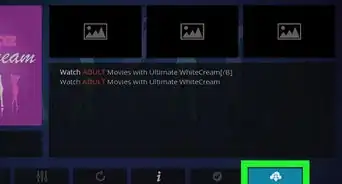
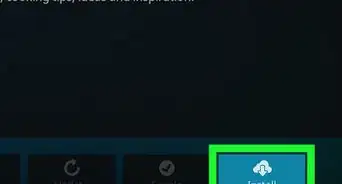
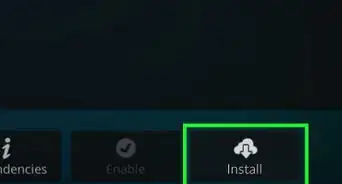
12Click or tap Install on the bottom-right. This button looks like a white cloud with a downward arrow on it. It will download and install the Specto add-on to your Kodi.
- If you're prompted, click or tap OK in the confirmation window.
-
13Wait for the "Add-on installed" message. When Specto is fully installed, you'll see a notification message saying "Add-on installed" on the top-right. This means your add-on installation is complete, and you're ready to use Specto.



About This Article

1. Open Kodi, and make sure Unknown resources are enabled in System.
2. Click or tap the gear icon, select File Manager, and then Add source.
3. Click or tap None, enter "http://androidaba.com/addons/", and click OK.
4. Select the name field, enter "aba", and select OK.
5. Go back to the main menu, and select Add-ons on the left-menu.
6. Click or tap the open box icon on the top-left, and select Install from zip file.
7. Select aba, repository, and repository.kodil.zip, respectively.
8. Select Install from repository, Kodil repository, and Video add-ons.
9. Scroll down, select Specto, and select Install.