X
This article was written by Jack Lloyd. Jack Lloyd is a Technology Writer and Editor for wikiHow. He has over two years of experience writing and editing technology-related articles. He is technology enthusiast and an English teacher.
This article has been viewed 83,722 times.
This wikiHow teaches you how to add a life event to your Facebook profile page, or "Timeline". Life events are major occurrences in your life such as getting married, moving to a different country, or discovering a new Netflix series.
Steps
Method 1
Method 1 of 2:On Mobile
Method 1
-
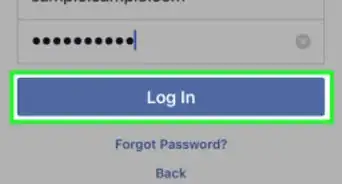
1Open Facebook. It's a dark-blue app with a white "f" on it. This will open your Facebook News Feed if you're already logged into Facebook on your phone or tablet.
- If you aren't logged into Facebook, enter your email address (or phone number) and password to continue.
-
2Tap ☰. It's in either the bottom-right corner of the screen (iPhone) or the top-right corner of the screen (Android).Advertisement
-
3Tap your name. You'll see this tab at the top of the menu. Doing so takes you to your Facebook Timeline.
-
4Scroll down and tap Life Event. It's in the lower-right corner of the "What's on your mind?" text box that's near the top of your Timeline.
-
5Select a life event. There are several suggested life event options toward the top of this page, and several life event categories with additional options inside of them at the bottom of the page.
- You can also type a title into the search bar at the top of the screen and then tap it below the search bar to create your own life event.
-
6Enter your life event's details. The details Facebook asks for will vary depending on the life event you chose.
- Tap Skip in the top-right corner of the screen to skip the details.
- If you created your own life event, you can select an icon here before continuing.
-
7Enter a description for your life event. This is what will appear below the life event's title.
- Skip this step if you don't want to describe your life event.
-
8Tap Post. It's in the upper-right side of the screen. Doing so will save your life event to your Facebook Timeline.Advertisement


Method 2
Method 2 of 2:On Desktop
Method 2
-
1Go to Facebook's website. Go to https://www.facebook.com in your preferred browser. This will load your News Feed if you're already logged into Facebook.
- If you aren't already logged into Facebook, enter your email address (or phone number) and password before continuing.
-
2Click your name. Your first name should be in the upper-right side of the Facebook page. Click it to go to your profile.
-
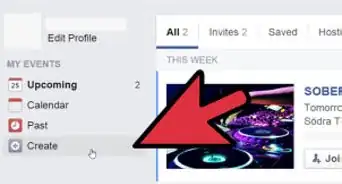
3Click Life Event. It's in the upper-right side of the "Create a Post" section near the top of your Timeline. Doing so brings up a pop-up window.
-
4Select a life event category. Place your mouse cursor over a category title on the left side of the pop-up window. These include the following:
- Word & Education
- Family & Relationships
- Home & Living
- Health & Wellness
- Travel & Experiences
-
5Select a life event. Click a preset life event on the right side of the window. The life event presets available to you will vary depending on your selected life event category.
- Each category has a Create Your Own option that you can click if you can't find a life event preset that fits.
-
6Enter your life event's details. These details will vary slightly depending on your chosen life event, but will typically include the following:
- Title - The event's title/description.
- Location - The geographical location of the life event.
- With - Tag someone who experienced this life event with you, if applicable.
- When - The data of the life event.
- Story - An explanation of the life event.
-
7Click Save. Doing so will post the life event to your Timeline and add it to your profile.Advertisement


Community Q&A
-
QuestionHow can I create a video with images?
 Omar AskarCommunity AnswerYou need an external editing software to do this. It can not be done using Facebook.
Warnings
- Make sure you're aware of your life events' privacy settings. It's best to keep visible life events restricted to people in your friends list.Thanks!
Advertisement


About This Article
Advertisement