X
wikiHow is a “wiki,” similar to Wikipedia, which means that many of our articles are co-written by multiple authors. To create this article, volunteer authors worked to edit and improve it over time.
This article has been viewed 89,212 times.
Learn more...
If you work with 3D Communication Software Google SketchUp, you could find yourself wanting to add more textures than what it comes with. Read this article to learn how.
Steps
Method 1
Method 1 of 2:Temporary
Method 1
-
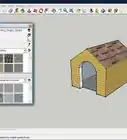
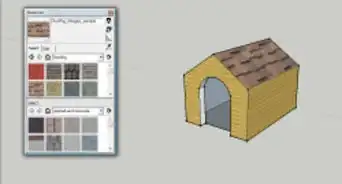
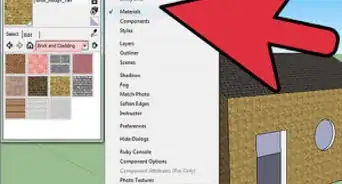
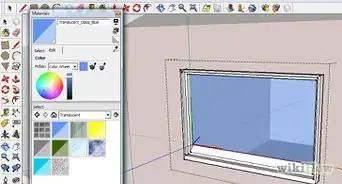
1Click on the Paint Bucket icon to bring up the Materials dialog.
-
2Click on the Create Materials icon in the dialog box.Advertisement
-
3Click on Browse and browse to where the texture is on your hard drive.
-
4Once you have added it, name it.
-
5Check that the size is appropriate, if you know the size of it. Here, SketchUp added the size itself.
-
6Click OK.
- It will be added to the In Model collection of textures.
Advertisement


Method 2
Method 2 of 2:Permanent
Method 2
-
1Do the above process to add it to SketchUp.
-
2Right click on the new texture and select Save As.
-
3Navigate to where you want it. This is a wood texture, so it will be put under wood. Be sure that it has a name other than Material X (whatever that number is).
- It will be added to the Wood textures.
Advertisement



References
- Additional information found at SawmillCreek.org
About This Article
Advertisement