X
This article was written by Darlene Antonelli, MA. Darlene Antonelli is a Technology Writer and Editor for wikiHow. Darlene has experience teaching college courses, writing technology-related articles, and working hands-on in the technology field. She earned an MA in Writing from Rowan University in 2012 and wrote her thesis on online communities and the personalities curated in such communities.
This article has been viewed 4,319 times.
This wikiHow will show you how to activate a hotspot. To activate a hotspot, you need to have a hotspot-enabled plan with your provider and a compatible phone.
Steps
Method 1
Method 1 of 3:Activating Hotspot in iOS
Method 1
-
1
-
2Tap Personal Hotspot. If you don't see this option listed, go to "Cellular" and tap Personal Hotspot from there.
- If you don't see the option for the personal hotspot, you might not be able to use it, and you may need to change your plan with your service provider to enable it.
-
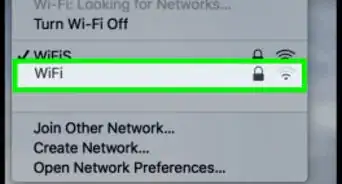
3Tap to toggle the switch on . Your iOS phone or tablet will now show up as a discoverable network for any users looking for networks.
- You have the option to add a Wi-Fi password so random people cannot connect to your hotspot.
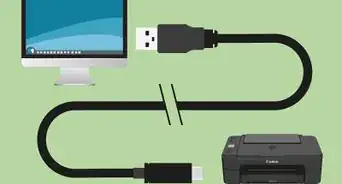
- You can connect to the hotspot on your other devices by Wi-Fi, USB cable, or Bluetooth.
- Follow the same steps to turn off your hotspot.[1]


Method 2
Method 2 of 3:Activating Hotspot in Android
Method 2
-
1
-
2Search "tether." Since many different phone brands have a different way of navigating to activating a hotspot, searching for "tether" will most likely get you where you need to go. For example, if you're using a Samsung, you need to tap Connections>Mobile Hotspot and Tethering>Mobile Hotspot, but an HTC10 device does not have a menu for "Connections."
- Your search for "tether" should lead you to "Mobile Hotspot."
-
3Tap to toggle the switch on . Your Android will now show up as a discoverable network for any users looking for networks. [2]
- If you're unable to toggle hotspot on, then your plan may not be eligible for hotspot use.


Method 3
Method 3 of 3:Using a Mobile Hotspot Device
Method 3
-
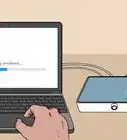
1Insert the SIM (if it's not pre-installed). Since there are so many different ways to accomplish this, you may need to refer to the manual associated with your device. For example, you can look at https://www.verizonwireless.com/support/jetpack-mifi-6620l/ for support on the Jetpack MiFi 6620L.
-
2Make sure the battery is charged completely. Before using the hotspot, you'll want to follow the manual's instructions to charge it completely.
-
3Press and hold the power button until the device powers on. Your hotspot should already be activated, but if you're having trouble, get in touch with the hotspot's service provider.



-Step-6-Version-5.webp)
-Connection-Step-12-Version-5.webp)


References
About This Article

Darlene Antonelli, MA
Tech Specialist
This article was written by Darlene Antonelli, MA. Darlene Antonelli is a Technology Writer and Editor for wikiHow. Darlene has experience teaching college courses, writing technology-related articles, and working hands-on in the technology field. She earned an MA in Writing from Rowan University in 2012 and wrote her thesis on online communities and the personalities curated in such communities. This article has been viewed 4,319 times.
How helpful is this?
Co-authors: 4
Updated: September 30, 2019
Views: 4,319
Categories: Wireless Networking
Article SummaryX
1. Open Settings.
2. Tap Personal Hotspot.
3. Tap to toggle the switch on.
Did this summary help you?