This article was written by Nicole Levine, MFA. Nicole Levine is a Technology Writer and Editor for wikiHow. She has more than 20 years of experience creating technical documentation and leading support teams at major web hosting and software companies. Nicole also holds an MFA in Creative Writing from Portland State University and teaches composition, fiction-writing, and zine-making at various institutions.
The wikiHow Tech Team also followed the article's instructions and verified that they work.
This article has been viewed 12,422 times.
YouTube is a useful service, it allows you to share your videos to the world. However, sometimes you only want to share your video with your friends. Luckily, YouTube allows you to make your videos private so that only people that you approve can see it, but the way to access private videos is different than the way to access public videos. Don't worry though, this wikiHow teaches you how to view the YouTube videos you’ve set to private on Android.
Steps
-
1Open YouTube on your Android. It’s the red rectangle icon with a white triangle inside. You’ll usually find it in the app drawer.
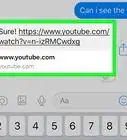
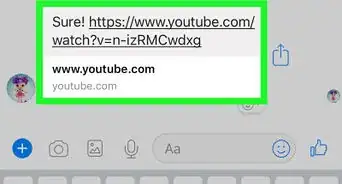
- If you want to view someone else’s private video, you’ll need them to send you the URL. Once you receive the URL, tap it to view the video.
-
2Tap Library. It’s at the bottom-right corner of the screen.
-
3Tap My videos. It’s near the top of the screen.
-
4Find a video displaying a padlock icon. This icon only appears on videos that are private.
-
5Tap the video. The video will start playing.



About This Article

1. Open YouTube.
2. Tap Library.
3. Tap My videos.
4. Find a video with a padlock icon.
5. Tap the video.