This article was co-authored by wikiHow staff writer, Jessica Gibson. Jessica Gibson is a Writer and Editor who's been with wikiHow since 2014. After completing a year of art studies at the Emily Carr University in Vancouver, she graduated from Columbia College with a BA in History. Jessica also completed an MA in History from The University of Oregon in 2013.
Learn more...
At first glance, your Chromebook might look like any other laptop you've had. However, you'll notice that there's no Caps Lock key! This isn't a mistake—Google Chromebooks don't have Caps Lock keys because the emphasis is on the search function. To use Caps Lock, you will need to reassign your search key to the caps lock key. We'll show you how to make this simple switch!
Steps
Question 1
Question 1 of 5:How do you use Caps Lock on a Chromebook?
-
1Press down the Alt key and then the Search key. Then, type what you'd like to have in capital letters. When you're done, just press the Alt and Search keys again to turn off Caps Lock. It's as simple as that![1]
- If you've got a Pixelbook, remember that the Launcher key is the same as the Search button, so you'll simply press the Alt button plus the Launcher key.
Advertisement

Question 2
Question 2 of 5:Does Chromebook have a Caps Lock key?
-
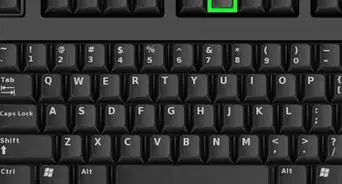
1No—Google replaced it with a Search key. The Search key is located where the Caps Lock key typically is on a Windows or Mac—the leftmost button on the middle row of the keyboard.[2]
- If you have a Pixelbook, the key is the same but it has a circular icon called the Launcher key.

Question 3
Question 3 of 5:Why doesn't the Chromebook use the Caps Lock key?
-
1Google is known for its search engine, so this button emphasizes that. The argument goes that Chromebook users are more likely to be searching for things online than using a long string of all capital letters.[3]Advertisement

Question 4
Question 4 of 5:How can I change the Search key to Caps Lock?
-
1Get into settings and swap the search feature with Caps Lock. When you click settings, scroll down until you see the "Device" header. Click on "Keyboard" which is in the dropdown menu. You'll see "Search" at the top of the next menu and you can click the dropdown menu to its right. Scroll down and click "Caps Lock" to reassign the key.[4]
- You can also reassign the "Ctrl", "Alt", "Esc", and "Backspace" keys if you like.

Question 5
Question 5 of 5:What can I do if I can't get Caps Lock to work?
-
1Check that your operating system is up to date. Your Chromebook should automatically search for updates, but you can go into settings and click "About Chrome OS." Then, select the version your Chromebook uses and click "Check for updates." Sometimes, this is all it takes to fix the Caps Lock.[5]
- You might also check to see that the "Search" key hasn't been reassigned to other functions. Go into settings and click "Device," then "Keyboard." Select which key you'd like to assign the "Search" option to in the drop-down menu on the right.
Advertisement

References
- ↑ https://www.google.com/chromebook/howto/caps-lock/
- ↑ https://support.google.com/chromebook/answer/183101?hl=en
- ↑ https://www.cnet.com/tech/computing/how-to-turn-on-caps-lock-on-a-chromebook/
- ↑ https://www.cnet.com/tech/computing/how-to-turn-on-caps-lock-on-a-chromebook/
- ↑ https://support.google.com/chromebook/thread/5405345/cap-lock-not-working-on-my-chromebook-i-tried-alt-search-but-it-won-t-work?hl=en
About This Article