X
This article was written by Nicole Levine, MFA. Nicole Levine is a Technology Writer and Editor for wikiHow. She has more than 20 years of experience creating technical documentation and leading support teams at major web hosting and software companies. Nicole also holds an MFA in Creative Writing from Portland State University and teaches composition, fiction-writing, and zine-making at various institutions.
This article has been viewed 10,194 times.
This wikiHow teaches you how to use your iPad as a second monitor for your Mac or PC. You can use Duet Display to connect with a USB or lightning cable, or Air Display to connect wirelessly.
Steps
Method 1
Method 1 of 2:Using Duet Display
Method 1
-
1Download Duet Display from the App Store. This is a paid app that allows you to use your iPad as a second monitor for your PC or Mac. To use Duet Display, you’ll need your lightning or USB charging cable handy.[1] You can select a different app if you wish—the setup steps should be similar.
-
2Navigate to https://www.duetdisplay.com on your Mac or PC. You can use any web browser, such as Chrome or Safari, to access the website.Advertisement
-
3Click Download Mac or Download PC. Duet Display should now start downloading to your computer. Once the download is complete, you can move to the next step.
-
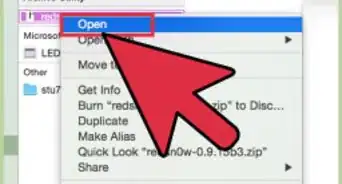
4Run the installer file. To do this, double-click the file you just downloaded, then follow the on-screen instructions. This will install Duet Display on your computer.[2]
- If you’re using a Mac, you’ll be prompted to install a required graphics driver. After the driver is installed, you’ll have to restart your Mac.
- If you’re using a PC, you won’t need to install drivers, but you will need to restart your computer once the installation is complete.
-
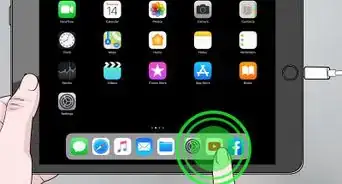
5Open Duet Display on your iPad. It’s the blue “d” icon on the home screen. You’ll see a message that says “Connect to Mac or PC.”
-
6Connect the iPad to the computer with a USB to 30 pin or lightning cable. You can use the same cable you use to charge and/or sync your iPad. After a moment, your iPad should now display a part of your computer’s desktop.
-
7Adjust your display settings. You can configure all types of settings, such as the location/position of the iPad monitor (e.g. to the left or right of the primary monitor) in your computer’s display settings. Here’s where to find those:[3]
- macOS: Click Displays under System Preferences, then select Arrangement. You can drag the screens around in the order you desire.
- Windows: Click the Duet icon in the system tray (usually at the bottom-right corner of the screen, near the clock), then click the link to your display settings.
Advertisement


Method 2
Method 2 of 2:Using Air Display
Method 2
-
1Download Air Display 3 from the App Store. Air Display is a paid app that allows you to use your iPad as a second monitor for your Mac or PC. You won’t need to use a cable (though you can, if you want), as Air Display can connect wirelessly.
- The computer and iPad must be connected to the same Wi-Fi network to use the wireless method.
-
2Navigate to https://avatron.com/air-display-hosts/ on your PC or Mac. You can use any web browser, such as Safari or Chrome, to download the required files to your computer.[4]
-
3Fill out the form and click Download Now. In a few moments, you will receive an email from Air Display that contains a download link.
-
4Click the link in the email to download the installer. This will download a program that will install the Air Display host app and drivers.
-
5Run the installer file. Double-click the file you just downloaded, then follow the on-screen instructions to complete the installation.
- You may have to give the app permission to run, depending on your settings.
- When the installation is complete, you’ll find an Air Display icon in your Windows Taskbar or your Mac’s Applications folder.
-
6Click the Air Display icon on the computer. This opens the app on the computer’s side.
-
7Tap the Air Display icon on your iPad. The iPad is now ready to connect.
-
8Select your iPad in Air Display on your computer. This will create a wireless connection between the two devices, and in a moment, you’ll see part of your computer’s desktop extended onto the iPad.
- If you prefer to use a USB cable, connect it before clicking your iPad—the devices will connect through the cable automatically.
-
9Adjust your display settings. You can configure all types of settings, such as the location/position of the iPad monitor (e.g. to the left or right of the primary monitor) in your computer’s display settings. Here’s where to find those:[5]
- macOS: Click Displays under System Preferences, then select Arrangement. You can drag the screens around in the order you desire.
- Windows: Click the Air Display icon in the system tray (usually at the bottom-right corner of the screen, near the clock), then click the link to your display settings.
Advertisement












References
About This Article

Nicole Levine, MFA
Tech Specialist
This article was written by Nicole Levine, MFA. Nicole Levine is a Technology Writer and Editor for wikiHow. She has more than 20 years of experience creating technical documentation and leading support teams at major web hosting and software companies. Nicole also holds an MFA in Creative Writing from Portland State University and teaches composition, fiction-writing, and zine-making at various institutions. This article has been viewed 10,194 times.
How helpful is this?
Co-authors: 3
Updated: May 25, 2021
Views: 10,194
Categories: Ipad
Advertisement