This article was co-authored by wikiHow staff writer, Madeleine Criglow. Madeleine Criglow is a wikiHow Staff writer based in the Pacific Northwest. She has over six years of experience working in copywriting, editing, and journalism. In addition to her work for wikiHow, she writes a monthly film column for Tigard Life and Tualatin Life newspaper. Madeleine graduated from the University of Puget Sound with a BA in English with an emphasis in Creative Writing.
There are 11 references cited in this article, which can be found at the bottom of the page.
This article has been viewed 45,446 times.
Learn more...
As dependable and long-lasting as iPads can be, they, unfortunately, don't last forever. At a certain point, an iPad becomes too old to be able to download the latest iOS update. If you're struggling to download an iOS update or your apps are refusing to update, you may be wondering if your iPad is too old to handle it. This article is here to help answer that question, along with others that may come up as you figure out the fate of your iPad.
Steps
Question 1
Question 1 of 6:Is my iPad too old to update to iPadOS 14?
-
1It is if your iPad is older than the iPad Air 2. This model was released in October 2014 and is the oldest iPad that is compatible with iPadOS 14. iPadOS 14 is compatible with a number of other older iPad models. These include the iPad Pro 12.9-inch, the iPad mini 4, the iPad Pro 9.7-inch, the 5th generation iPad, the iPad Pro 10.5-inch, and the iPad Pro 12.9-inch.[1] Devices that are older than these models aren't able to support the technological improvements and changes of iPadOS 14.
- Determine what model of iPad you have by visiting "Settings" followed by "General." Next, click "About" and you should see what model you own.[2]
- Access a complete list of iPad models that can download iPadOS 14 by visiting https://www.apple.com/ipados/ipados-14/ and scrolling to the bottom of the page.

Question 2
Question 2 of 6:How do I know if my iPad is getting too old to use?
-
1Your iPad is no longer listed in the compatible devices for the latest update. With each update, Apple releases a full list of devices that are able to download it.[3] If you don't see your model on the list and it's more than 5-6 years old, it's likely that your iPad is too old to handle a new update.[4]
-
2Your iPad can't download new apps or update the ones you have. App developers will often still let you run their apps on an older iPad for 2-3 years, even if your iPad can no longer update. After this time period, though, most apps stop being compatible with older versions of iOS. This may look like being unable to use the app unless you update to a new version of iOS or being unable to download new apps from the app store.[5]


Question 3
Question 3 of 6:How do you update an iPad that won’t update?
-
1If it's too old, you can't. Unfortunately, there's no way to get past the limitations of your older iPad model if it's too old to update. These models don't have enough internal RAM to run the new and improved technology of later updates like iPadOS 14. Though your iPad is not necessarily obsolete (there are still ways to use an old iPad that can't update), you won't be able to download later versions of iOS.[6]
-
2Make sure you have enough space on your iPad to fit the update. If your iPad isn't too old for the latest update but it won't download, you may need to free up some space by deleting apps you don't use or photos and videos you have backed up on another device. To go through your storage space and determine what to delete, visit "Settings" followed by "General." Next, click "[Your iPad model] Storage."[7]
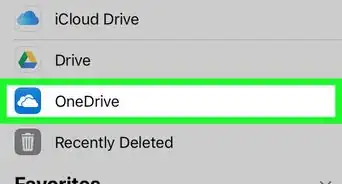
- Alternatively, you can update your iPad by connecting it to your computer. If your Mac is running macOS Catalina 10.15 or later, click Finder. If your Mac is running macOS Mojave 10.14 or earlier or you have a PC, open iTunes. Next, connect your iPad to your device. After that, use Finder or iTunes to click "Check for Update" followed by "Download and Update."[8]


Question 4
Question 4 of 6:Can I still use an iPad that can't update?
-
1You can repurpose an old iPad if it's still able to run older apps. You may not be able to update it anymore, but you can usually still use it for a few more years. Some ideas include:[9]
- Downloading your music library onto your iPad and hooking it up to a Bluetooth speaker to make it a designated music player.
- Using your iPad as a television remote. Many television companies allow you to download apps that let you use your device as a remote control. If your device is still able to download apps, download the compatible app for your television.
- Keeping your iPad in your car and using it as a navigation system. This will only work if your iPad can still support Maps or another navigation app.

Question 5
Question 5 of 6:What can I do with an iPad that's too old to use?
-
1Trade in your iPad with Apple. iPads including the iPad Pro, iPad (first generation), iPad Air, and iPad mini may be eligible to trade in with the Apple store if you're planning on upgrading. Bring in your old iPad model when you go to purchase a new iPad and, if the model is eligible to be traded in, you can put the amount the product is worth towards the price of your new iPad.[10]
-
2Recycle your iPad with Apple. It's possible that your iPad is too old to trade in for a credit. In that case, you can bring your iPad to the Apple store and they will recycle it for you. That way, your iPad can be repurposed and responsibly disposed of.[11]


Question 6
Question 6 of 6:How can I speed up an old iPad that runs slowly?
-
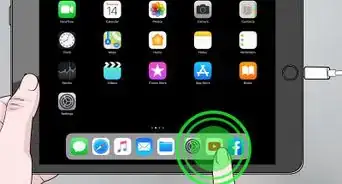
1Delete old apps to get more storage space. Running a ton of apps will slow down an older iPad. Review and delete your apps by visiting "Settings" followed by "General." After that, click "[Your iPad model] Storage." You can also delete them by holding down the icon on your home screen and clicking the "x" mark on the top right corner.[12]
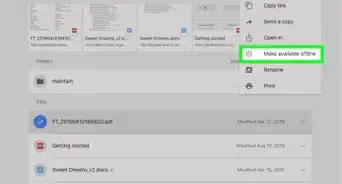
- Photos and videos synced over from your other iCloud devices tend to take up a lot of space on your device as well. Adjust your iPad settings to stop this media from syncing.[13]
- You can delete get rid of pictures from iCloud by going into your settings and tapping on "photos"—there, you should see an option to turn off iCloud photos. Then, visit the iCloud website and delete the desired photos and videos on there.[14]
-
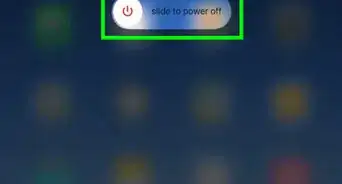
2Restart your iPad. This can potentially help you speed up your iPad. Press the Sleep/Wake button on the top right corner of your iPad and hold it down. Next, a "Slide to Turn Power Off" option will appear. Slide the control to the right and leave your iPad off for a few seconds. After that, turn your iPad back on by holding down the same top button.[15] Do so until you see the Apple logo on your iPad screen.








References
- ↑ https://screenrant.com/apple-ipad-ios-14-ipados-update-compatible-older-models/
- ↑ https://support.apple.com/guide/ipad/supported-models-ipad213a25b2/ipados
- ↑ https://www.apple.com/ipados/ipados-14/
- ↑ https://discussions.apple.com/thread/251464594
- ↑ https://discussions.apple.com/thread/251464594
- ↑ https://support.apple.com/en-gb/HT201435
- ↑ https://support.apple.com/en-gb/HT201435
- ↑ https://support.apple.com/en-gb/HT203097
- ↑ https://www.computerworld.com/article/2839444/12-ways-to-use-your-older-ipad.html
- ↑ https://www.apple.com/shop/trade-in
- ↑ https://www.apple.com/shop/trade-in
- ↑ https://www.computerworld.com/article/3045250/8-easy-ways-to-speed-up-older-ipads-and-iphones.html
- ↑ Josef Storzi. Apple & Mobile Phone Repair Specialist. Expert Interview. 7 December 2020.
- ↑ Josef Storzi. Apple & Mobile Phone Repair Specialist. Expert Interview. 7 December 2020.
- ↑ https://support.apple.com/en-us/HT210631
About This Article