X
This article was written by Jack Lloyd. Jack Lloyd is a Technology Writer and Editor for wikiHow. He has over two years of experience writing and editing technology-related articles. He is technology enthusiast and an English teacher.
The wikiHow Tech Team also followed the article's instructions and verified that they work.
This article has been viewed 7,303 times.
This wikiHow teaches you how to use your iPad's "Slide Over" feature, which allows you to open a second app in a sidebar next to a full-screen app. Slide Over is available on the iPad Mini 2, 3, and 4, as well as the iPad Pro and iPad Air models.
Steps
Part 1
Part 1 of 3:Enabling Slide Over
Part 1


Part 2
Part 2 of 3:Opening an App in Slide Over
Part 2
-
1Open a primary app. Tap the app icon for the app that you want to use as the primary app for the Slide Over feature. This is the app with will stay in full-screen mode.
- Not all non-Apple apps support Slide Over. Consider opening an Apple app (e.g., Notes) to test Slide Over before experimenting with other apps.
-
2Open a sidebar app. Tap the app icon for the app that you want to use as a secondary app.
- Again, consider using an Apple app (e.g., Reminders) for this step.
-
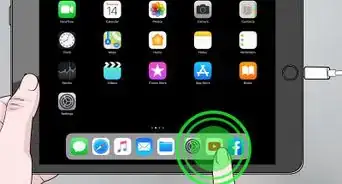
3Bring up your iPad's Dock. Slowly swipe your finger up from the bottom of the screen until you see the bar of apps appear at the bottom of the screen.
- If you see the Control Center open, you've swiped up too far.
-
4Tap and hold the secondary app. This should be the app that you want to add to Slide Over. After a brief moment of holding, the app will enlarge slightly, signifying that you can now drag it around.
-
5Drag the app over to the middle-right side of the screen. The app will expand into a vertical bar.
-
6Remove your finger. This will drop the app into the Slide Over sidebar and open it here.


Part 3
Part 3 of 3:Using Slide Over
Part 3
-
1Use the secondary app. You can use the app in the right-hand sidebar like usual, though the window will be smaller than what you're likely used to.
- For example, you can text using Messages, browse your music library with iTunes, or scroll through your pictures with Photos.
-
2Tap the primary app's window. This will hide the secondary app's sidebar and allow you to go back to full-screen view.
-
3Swipe left from the right side of your screen. Doing so re-opens the sidebar app.
-
4Replace the secondary app. Simply bring up your iPad's Dock and then drag another app onto the sidebar app to replace it.