wikiHow is a “wiki,” similar to Wikipedia, which means that many of our articles are co-written by multiple authors. To create this article, 12 people, some anonymous, worked to edit and improve it over time.
The wikiHow Tech Team also followed the article's instructions and verified that they work.
This article has been viewed 175,418 times.
Learn more...
If you are thinking of buying Photoshop or another expensive photo editing program, first consider a program built right in to your Mac. If you are buying Photoshop so you can take the background out of a photo, highlight a certain part of a document, or replace the background of a photo with another one, you needn't spend money on Photoshop. The answer is Preview. With the updates in Leopard and Snow Leopard, Preview has changed from a simple photo viewing application to a useful photo-editing tool. It's amazing all the things you can do with Preview if you know how to use it!
Steps
Method 1
Method 1 of 3:Taking the background out of images
-
1Open Preview.
-
2Use Preview to open your image. Go to File>Open and choose the image you wish to open.Advertisement
-
3Click the "Select" drop-down menu.
-
4Choose the "Instant Alpha" button.
-
5Click wherever you want to erase the background.
-
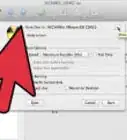
6You will notice that part of your picture turns red.
-
7Drag until most of your background is red.
-
8When you have most of the background selected, hit the "Delete" key.
-
9This won't erase all of the images background, but it should get most of it.
-
10Now it comes down to personal preference on which tool to use to clean up the rest of the background.Advertisement


Method 2
Method 2 of 3:Isolating a part of a picture


Method 3
Method 3 of 3:Annotating on a Picture/PDF


Community Q&A
-
QuestionI clicked on Annotate/Text by mistake. How do I delete the text box?
 AlexTop AnswererYou should be able to click on the text box and hit Backspace or Delete on your keyboard to remove it. If that doesn't work, hit Command-Z and it will undo your most recent change (in this case, the text box).
 -
QuestionHow can I add another picture on top of the original like in Paint?
 Community AnswerCopy the image that you want to paste over. Then, exit out of the image you copied and go where you want to paste it. Then paste it on.
Things You'll Need
- A Mac running Leopard, Snow Leopard, or Tiger
-Step-6.webp)