This article was written by Nicole Levine, MFA. Nicole Levine is a Technology Writer and Editor for wikiHow. She has more than 20 years of experience creating technical documentation and leading support teams at major web hosting and software companies. Nicole also holds an MFA in Creative Writing from Portland State University and teaches composition, fiction-writing, and zine-making at various institutions.
This article has been viewed 292,650 times.
This wikiHow article teaches you different ways to save YouTube videos to your Mac so you can watch them offline. If you don't mind standing by while the video plays, you can record it using QuickTime's screen-recording tools. If you're in a hurry and would rather use a third-party app, try 4K Downloader or VLC Media Player instead—both are free. Keep in mind that YouTube's Terms of Service does not permit downloading videos without explicit permission from YouTube and/or the rights holder, and that downloading copyrighted videos may be illegal in your area.[1]
Steps
Method 1
Method 1 of 3:Recording the Screen with QuickTime
-
1Open the video you want to record on YouTube. Don't play the video just yet—just bring it up on the screen so it's ready.
- This option is not the fastest, but it's good if you don't want to (or can't) download any additional software.
-
2Open QuickTime on your Mac. It's the gray-and-blue "Q" icon on the Launchpad and in the Applications folder.Advertisement
-
3Click the File menu. It's at the top-left corner of the screen in the menu bar.
-
4Click New Screen Recording on the menu. This opens the Screen Recording window.
- Depending on the version of macOS you're using, you may see a toolbar with several icons on it instead.
-
5Select Internal Microphone from the menu. The menu is the downward-pointing arrow to the right of the red circle at the center of the window. This ensures that the app captures the video's sound.[2]
- If you don't see such a menu, click Options instead.
-
6Click the red circle button. You'll see some quick instructions about selecting an area of the screen to record.
-
7Drag the crosshairs over to select the video. This tells QuickTime to only capture the video rather than the entire screen.
-
8Click Record and start playing the video. If the sound isn't on, be sure to turn it on now.
-
9Click the Stop Recording icon when the video ends. It's on the menu at the top of the screen and looks like a black circle with a white square inside. QuickTime will stop recording the screen and display the finished recording, which is also saved to your Movies folder.
- If you want to trim the beginning and/or end from the recording, click the Edit menu and select Trim. You can then drag the yellow trimming bar to select the part of the video you want to keep and click Trim to save your changes.
Advertisement


Method 2
Method 2 of 3:Using 4K Video Downloader
-
1Install 4K Video Downloader on your Mac. This is a "Freemium" app that lets you download up to 30 YouTube videos per day at no cost.[3] This app has been around for a long time and doesn't come with any sketchy software installs.
- To download the app, go to https://www.4kdownload.com/downloads and click Download next to "macOS 10.13 and later."
- Once the file is downloaded, double-click the downloaded file and follow the on-screen instructions to install.
-
2Copy the address of the YouTube video you want to download. If you haven't already done so, bring up the video in your favorite web browser now. To copy the URL, click the address bar to highlight it, and then press Command + C to copy.
-
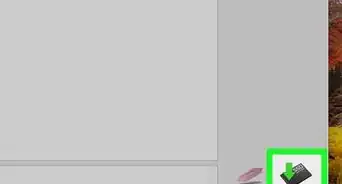
3Click Paste Link in 4K Video Downloader. It's the green and white plus sign at the top-left corner of the window.[4] The Download Clip window will appear.
-
4Select the video quality you want to download. The default format of MP4 is fine for most uses and works in nearly all video players. The download qualities available depend on the quality of the original video. You'll see the estimated size of each quality option to its right.
- If you want to choose a different format, click the "Format" menu and select an alternative.
- If the video has subtitles and you want to include them in your download, check the box next to "Download Subtitles."
- The path below the download options tells you where the downloaded video will be saved on your Mac. If you want to save the video somewhere else, click the three dots and choose another location.
-
5Click Download to download the video. This downloads the selected video to your Mac.Advertisement


Method 3
Method 3 of 3:Using VLC Media Player
-
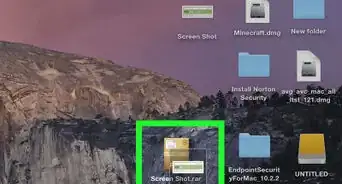
1Install VLC Media Player on your Mac. If you don't already have this popular media player installed, you can download it now from https://www.videolan.org/vlc/download-macosx.html. When you use this method, you'll use VLC to find the exact streaming URL of the video you want to download, which makes it so you can download the video in Safari. To install VLC Media Player:[5]
- Click the Download VLC button and save the DMG file to your Mac.
- Double-click the downloaded DMG file in your Downloads folder.
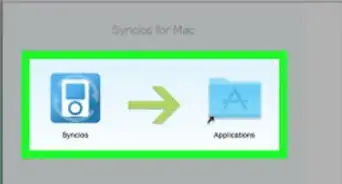
- Drag the VLC icon (the orange-and-white cone) to the Applications folder.
-
2Copy the address of the YouTube video you want to download. If you haven't already done so, bring up the video in your favorite web browser now. To copy the URL, click the address bar to highlight it, and then press Command + C to copy.
-
3Open VLC Player. You'll find it in the Applications folder once it's installed.
- You may have to provide permission for the app to run for the first time.
-
4Click the File menu. It's at the top-left corner of the screen in the menu bar.
-
5Click Open Network. This opens the "Open Source" window.[6]
-
6Click the "URL" box and press ⌘ Command+V. This pastes the YouTube URL into the box.
-
7Click the Open button. It's at the bottom-right corner of the window. This adds the video to your VLC playlist.
-
8Click the Window menu and select Media Information. The Window menu is in the menu bar at the top of the screen.
-
9Highlight the "Location" URL and press ⌘ Command+C. It's the URL at the bottom of the window. This copies the URL to your clipboard.
-
10Paste the copied URL into your browser and press ⏎ Return. The video will begin to play on your browser.
-
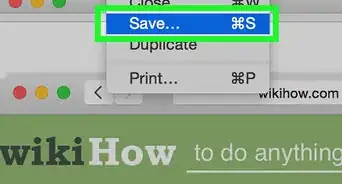
11Right-click the video and select Save Video as to save. You can name the video anything you wish. Once you've saved the video, it will begin to download from YouTube. The downloaded video will then be playing on your Mac whether you are on or offline.Advertisement


Warnings
- YouTube encourages users to stream their videos and does not support the act of downloading YouTube videos for offline viewing. Download YouTube videos at your own risk, and keep in mind there may be penalties for downloading videos from YouTube.Thanks!
-Step-6.webp)

-Step-10-Version-2.webp)
References
- ↑ https://www.youtube.com/static?template=terms
- ↑ https://support.apple.com/en-us/HT208721
- ↑ https://nerdtechy.com/4k-video-downloader-review
- ↑ https://www.4kdownload.com/howto/howto-download-youtube-hd-video
- ↑ https://www.vlchelp.com/downloading-installing-vlc-mac/
- ↑ https://www.youtube.com/watch?v=DPF9jduw1gI
About This Article

1. Open Quicktime.
2. Go to File > New Screen Recording.
3. Select the internal microphone.
4. Open the YouTube video.
5. Click Record and select the recorded area.
6. Click Record again to start recording.
7. Click the Stop Recording icon when you're finished.