This article was written by Darlene Antonelli, MA. Darlene Antonelli is a Technology Writer and Editor for wikiHow. Darlene has experience teaching college courses, writing technology-related articles, and working hands-on in the technology field. She earned an MA in Writing from Rowan University in 2012 and wrote her thesis on online communities and the personalities curated in such communities.
This article has been viewed 1,446 times.
Not sure which way to turn? Starting in late summer 2019, Google introduced an AR feature that put arrows and directions over your surroundings. This wikiHow will teach you how to use Live View in Google Maps in the mobile app.
Steps
-
1Open Google Maps. This app icon is located either on your homepage or the app drawer. It looks like a multicolored background with a white G.
-
2Enter your destination in the search bar. You'll find this along the top of your screen.Advertisement
-
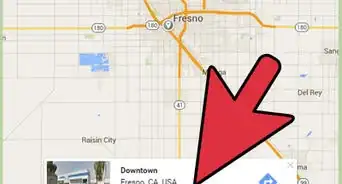
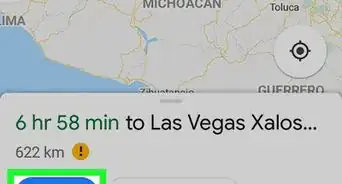
3Tap Directions. You'll see this blue button in the bottom left corner of your screen.
-
4Tap the walking icon. This is usually the third icon from the left of the screen.
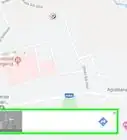
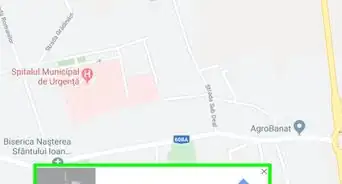
- If the feature is available for your phone, you'll see "Live View" appear at the bottom of your screen next to "Start."
-
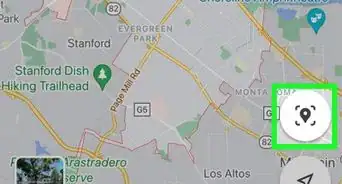
5Tap Live View. If this is your first time using Live View, you'll need to give Google access to your camera. Once your camera opens, point it at street signs and buildings and Google will tell you where to go.
- While you're walking, Google suggests that you keep your eyes on your surroundings and just listen to the voice cues that tell you where to go.[1]
Advertisement



References
About This Article

1. Open Google Maps.
2. Enter your destination in the search bar.
3. Tap Directions.
4. Tap the walking icon.
5. Tap Live View.