This article was co-authored by wikiHow Staff. Our trained team of editors and researchers validate articles for accuracy and comprehensiveness. wikiHow's Content Management Team carefully monitors the work from our editorial staff to ensure that each article is backed by trusted research and meets our high quality standards.
This article has been viewed 4,259 times.
Learn more...
This wikiHow teaches you how to add Gifs to your conversations in WhatsApp on an Android, iPhone, or iPad. You can send Gifs to your friends using WhatsApp's built-in Gif keyboard or by downloading your favorites from the web.
Steps
Method 1
Method 1 of 2:Using Built-In WhatsApp Gifs
-
1Tap to open WhatsApp. It’s a green icon with a white chat bubble with a phone inside of it.
-
2Tap Chats at the bottom of the screen.
-
3
-
4Select a recipient. This opens a conversation.
-
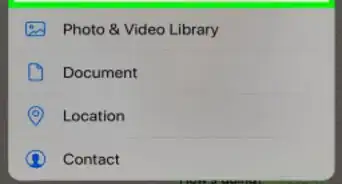
5Tap the + button next to the text box.
-
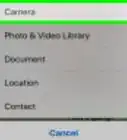
6Tap Photo & Video Library.
-
7
-
8Type a description of the Gif you want to use. Try something like "excited" or "yay." Some Gifs that match your search will appear.
-
9Tap the Gif you want to use. If you don't like the Gif as it appears, you have some option for editing it:
- Edit the length by dragging the gray box around the video timeline in from the left or right.
- Add a caption by typing into the "Add a caption…" box.
- You can also add text to, mark up, and crop/rotate the Gif.
-
10Tap the blue paper airplane button. This will send your Gif to the selected recipients.


Method 2
Method 2 of 2:Downloading a Gif from the Web
-
1Find the Gif you want using your mobile web browser. You can use popular sites like Giphy to find your Gif, or just do a Google search for one that you want to use.
-
2Tap to open the Gif. Wait for the Gif to load and play completely.
-
3Tap and hold on the open Gif. Hold until a menu pops up.
-
4Tap Copy or Copy Gif in the pop-up menu.
-
5Close your mobile web browser.
-
6Tap to open WhatsApp. It’s a green icon with a white chat bubble with a phone inside of it.
-
7Tap Chats at the bottom of the screen.
-
8
-
9Select a recipient. This opens a conversation.
-
10Tap and hold in the text box. Hold until you see the option to "Paste" appears.
-
11Tap Paste. This will open some editing options for your Gif.
- You can edit the length by dragging the grey box around the video timeline in from the left or right.
- You can add a caption for your Gif by typing in the "Add a caption…" box.
- You can also add text to, mark up, and crop/rotate the Gif.
-
12Tap the blue paper airplane button. This will send your Gif to the selected recipients.



About This Article

1. Tap the plus sign (+) in an active chat.
2. Tap Photo & Video Library.
3. Tap the Gif button.
4. Search for and select your Gif.
5. Tap the blue send button (it looks like a paper airplane).