wikiHow is a “wiki,” similar to Wikipedia, which means that many of our articles are co-written by multiple authors. To create this article, 13 people, some anonymous, worked to edit and improve it over time.
This article has been viewed 9,307 times.
Learn more...
CMake is useful in compiling source code for get binaries. Compiling a library from the source code guarantees that the resulting library is perfectly tailored for your CPU/OS, a luxury pre-compiled binaries don't always provide. It is also important that binaries you get target x64 platform.
In this guide you learn how to install CMake, process source code, build a solution, get binaries, and test them.
It is supposed your platform is Windows 10, and IDE Visual Studio 2019 or 2022. Check the Desktop development with C++ workload box as you download it, also click Language pack" and check "English" box.
Steps
Part 1
Part 1 of 3:Installing CMake
-
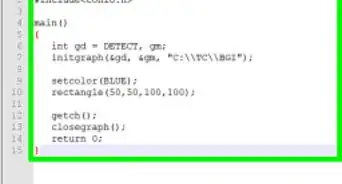
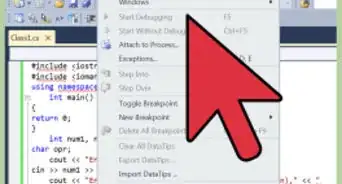
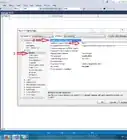
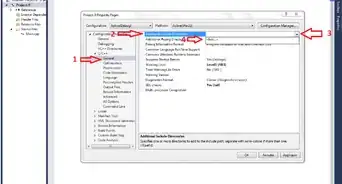
1Highlight what you expect to do. For example see picture above.
-
2Create folder GL. Open Windows's File Explorer > Navigate to disk (directory) C.
- If folder GL already exists it's okay.
- If it doesn't, right click in empty area > select New > Folder > type GL > hit ↵ Enter.
-
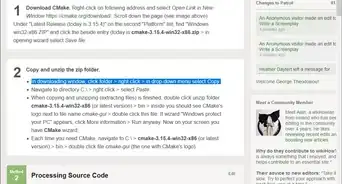
3Download CMake. Right-click on following address and select Open Link in New Window https://cmake.org/download/. Scroll down the page and find "Latest Release (3.22.0)", (or latest). In second "Platform" list, find "Windows x64 ZIP" and click the beside entry cmake-3.22.0-windows-x86_64.zip (or latest) > in opening wizard select Save file.
-
4Copy and unzip the zip folder.
- If the downloaded folder doesn't contain line with stripes (unzipped folder) click it > right click > Copy.
- If downloaded folder's icon contains vertical line with stripes (zipped folder), click folder > right click > in drop-down menu select Extract all.
- When unzipping (extracting files) is finished, click unzip folder cmake-3.22.0-windows-x86_64.zip (or latest) > right click > Copy.
- Go to drive (directory) C: > GL > right click > Paste.
- When copying is finished open folder and click folder bin > inside you should see CMake's logo next to file name cmake-gui > double click this file. If wizard "Windows protect your PC" appears, click More information > Run anyway. Now on your screen you have CMake GUI.
- Each time you need CMake, navigate to C:\ > GL > click unzip folder cmake-3.22.0-windows-x86_64.zip, (or latest) > right click > Copy. > bin > double click file cmake-gui (the one with CMake's logo).

Part 2
Part 2 of 3:Processing Source Code
-
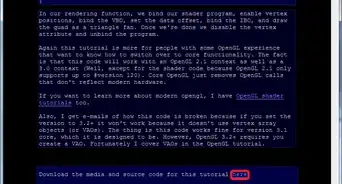
1Download source code. As an example we use GLFW. Right-click on following address and select Open Link in New Window https://www.glfw.org/download.html. Select "Source package". In opened wizard select Save File.
-
2Unzip and copy folder.
- In downloading window click zip folder glfw-3.3.5 (or latest) > click it, if you get no stripped (unzipped) icon, it's okay. If not, right click > select Extract all.
- Copy unzip folder and paste in C:\GL.
- Now in directory C:\GL, you have unzip folder glfw-3.3.5 (or latest). Click on its name > delete name > type: GLFW > hit ↵ Enter.
-
3Where is the source code. Copy (attention: do not copy any space)C:/GL/GLFW and paste in CMake GUI first text field.
-
4Where to build the binaries. Copy (attention: do not copy any space)C:/GL/GLFW/build an paste in second text field.
-
5Configure and generate. In CMake GUI, click Configure > in wizard Create Directory click Yes > select Visual Studio 16 2019 or 17 2022 > click Finish.
- When, in CMake GUI, you read: "Configuring done", click Generate. You should read: "Generating done".
-
6Build your solution.
- Navigate to C: > GL > GLFW > build. Double click "GLFW.sln", or "GLFW", or "ALL_BUILD.vcxproj". An instance of Visual Studio appears. Wait until in main menu Build entry appears. Click it > "Build Solution".
- Wait till you read the last line in "Output" window: ========== Build: 32 succeeded, 0 failed, 0 up-to-date, 2 skipped" ==========
- Number of "succeeded" changes in glfw versions. Today (25-11-2021) is 32.
- Copy C:\GL/GLFW/build/src/Debug and paste in File Explorer Address Bar. Hit ↵ Enter. You should see file glfw3.lib.
Part 3
Part 3 of 3:Testing Binaries
-
1Create folder GLP. Navigate to disk (directory) C.
- If folder GLP already exists it's okay.
- If it doesn't, right click in empty area > select New > Folder > type GLP > hit ↵ Enter.
-
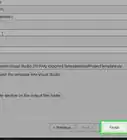
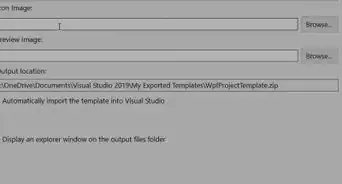
2Create empty project. If Visual Studio is open, in main menu click File > New > Project… .
- If is not open, open it > click "Create a new project".
- In Create a new project wizard, select Empty Project> click Next.
- In Configure your new project wizard,
- In Project name text box type: GLFWsrc.
- Copy C:\GLP and paste in Location text box .
- Check box Place solution and project in the same directory.
- Click Create.
-
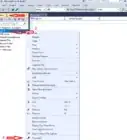
3Add your source file to the Project. In Solution Explorer wizard, right click the Source Files folder (the last one) > click Add > New Item…
- In the Add New Item - GLFWsrc window, click C++ File (.cpp) (the first one) from the middle of the window. In the Name text box, type Main.cpp.
- The Location should be C:\GLP\GLFWsrc. If it's not, copy C:\GLP\GLFWsrc and paste.
- Click the Add button. The file will open in the text editor but leave it blank for now.
-
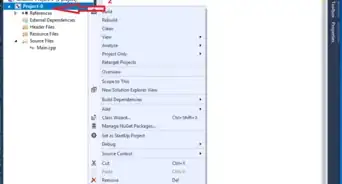
4Configure project's Properties. In Solution Explorer wizard, right click Project's name that is GLFWsrc > select Properties. In GLFWsrc Property Pages wizard,
-
1. "Platform". In main menu, Platform entry, select x64 > click Configuration Manager....
- In Active solution platform: select x64.
- In Platform entry, x64 is automatically selected.
- Click Close.
-
2. "Include". Click C/C++ > General > In beside menu select the first one, Additional Include Directories > click the down arrow at the end of the field > click Edit....
- Copy C:/GL/GLFW/include click first icon in Additional Include Directories wizard and paste.
- Click OK on Additional Include Directories wizard.
-
3. "Library". Double click Linker > click General > Additional Library Directories > click the down arrow at the end of the field > click Edit....
- Copy C:/GL/GLFW/build/src/Debug click first icon in Additional Library Directories wizard, and paste.
- Click OK on Additional Library Directories wizard.
-
4. "Dependencies". In Linker drop-down menu select Input > in beside menu select the first one, Additional Dependencies > click the down arrow at the end of the field > Edit... > copy opengl32.lib; glfw3.lib and paste in Additional Dependencies wizard's upper-most text box.
- Click OK on Additional Dependencies wizard.
- 5. "System". In Linker drop-down menu select System > in beside menu select the first one, SubSystem > click the down arrow at the end of the field > select Console (/SUBSYSTEM:CONSOLE).
- Click Apply and OK on GLFWsrc Property Pages wizard.
-
1. "Platform". In main menu, Platform entry, select x64 > click Configuration Manager....
-
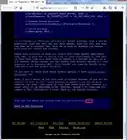
5Test code. Right-click on following address and select Open Link in New Window https://www.glfw.org/docs/3.0/quick.html#quick_example > copy code > go to Visual studio and paste it in Main.cpp code area. Hit Ctrl+F5. If everything gone well two windows appear: one black and other with a rotating colored triangle in black background. Good job.
-
6Correct any errors. In "Error List" if you see error about
- file with extension .h go to Part 3, step 3, sub-steps (1) and (2) and follow instructions.
- file with extension .lib go Part 3, step 3, sub-step (3), and follow instructions. Also to sub-step (4).
- "entry point must be defined" go to Part 3, step 3, sub-step (5), Set "SubSystem" to "CONSOLE", and follow instructions.
- For other errors, if you can't correct them, close Visual Studio > delete project folder GLFWsrc which lives in C:\GLP\ > open Visual Studio > repeat set up from Part 2.


-Step-16-Version-3.webp)