This article was written by Darlene Antonelli, MA. Darlene Antonelli is a Technology Writer and Editor for wikiHow. Darlene has experience teaching college courses, writing technology-related articles, and working hands-on in the technology field. She earned an MA in Writing from Rowan University in 2012 and wrote her thesis on online communities and the personalities curated in such communities.
This article has been viewed 1,706 times.
You'll usually get an update to a book automatically when a book publisher creates a new version and Amazon approves it. This wikiHow will teach you how to update Kindle books manually from the website and how to enable automatic updates from your Kindle app in case you've turned it off.
Steps
Method 1
Method 1 of 2:Updating Manually
-
1Go to https://www.amazon.com/ and sign in. If you're not signed in, you won't be able to manage your Kindle content.
-
2Hover your cursor over Your Account & lists and click Your Kindle Unlimited. You'll see this in the menu bar that's at the top of the page next to the search bar with your name.
- This menu option might say "Manage Your Kindle" instead.
-
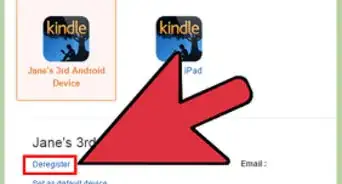
3Click Manage content and devices. It's in the horizontal menu that's near the top of the page.
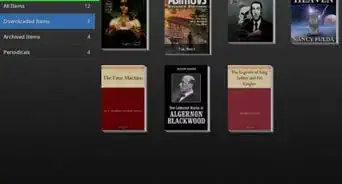
- A list of all your purchased content will load.
-
4Click Update Available. This link will appear next to each item that has an updated version available.
- Click Update in the pop-up window to confirm.[1]


Method 2
Method 2 of 2:Enabling Automatic Updates in the Mobile App
-
1Open Kindle. This app icon looks like the silhouette of a person reading a book on a gradient blue background that you'll find on one of your Home screens, in the app drawer, or by searching.
-
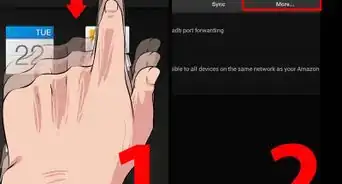
2Tap More. It's in the bottom right corner of your screen.
-
3Tap App Settings. You'll see this next to a gear icon near the middle of the menu.
-
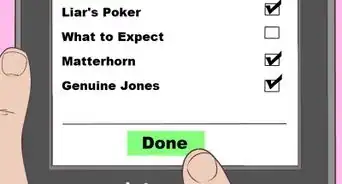
4Tap Book Updates. It's in the middle of the menu.
-
5



About This Article

1. Go to https://www.amazon.com/ and sign in.
2. Hover your cursor over Your Account & Lists and click Your Kindle Unlimited.
3. Click Manage content and devices.
4. Click Update Available.