X
wikiHow is a “wiki,” similar to Wikipedia, which means that many of our articles are co-written by multiple authors. To create this article, volunteer authors worked to edit and improve it over time.
This article has been viewed 46,266 times.
Learn more...
The Mac App Store is an application distribution platform similar to the App Store on the iPhone, iPad, and iPod touch that was released as part of Mac OS X 10.6.6. The Mac App Store has been highly integrated with OS X since Lion, and provides an easy method of managing and downloading new apps. Since Lion, the updates to OS X have only been available through the Mac App Store. This article will teach you how to update applications from the Mac App Store.
Steps
-
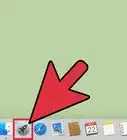
1Click the “App Store” icon in your dock to launch the Mac App store. Note: You will have to upgrade to at least Mac OS X 10.6.6 using Software Update to access the Mac App Store.
-
2Click the “Updates” tab at the top of the Mac App Store window.Advertisement
-
3Click the “Update All” button in the upper right corner to update all applications with available updates.
-
4Alternatively, to update apps one at a time, click the “Update” button next to the application you want to update.
-
5Enter your Apple ID and password when prompted followed by the “Sign In” button to automatically begin the update. The update will automatically begin to download and install.Advertisement


Community Q&A
-
QuestionNone of the apps I've purchased are on the list in the App Store. Where did they go? I still have them on my iPad and iPhone.
 Community AnswerApps that you buy for your mobile devices (iPad and iPhone) are not the same as apps that you buy for your computer, since they have to be compatible with different operating systems. Nothing you buy on your iPad/iPhone should show up in your Mac App Store, and if you want a specific app, you will have to download (or, unfortunately, buy) it again.
 -
QuestionDo I need to backup my computer before updating an app?Community AnswerIt should not be necessary to backup your computer immediately before an update, unless you are installing updates to the computer itself.




-Step-6.webp)

References
About This Article
Advertisement