X
wikiHow is a “wiki,” similar to Wikipedia, which means that many of our articles are co-written by multiple authors. To create this article, volunteer authors worked to edit and improve it over time.
This article has been viewed 8,751 times.
Learn more...
This article will teach you the simple steps of unpinning an app's tile from the Start menu in Windows 10.
Steps
-
1
-
2Locate the tile you wish to unpin. Once the menu is open you should see a series of live tiles on the right-hand side of your Start menu.Advertisement
-
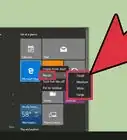
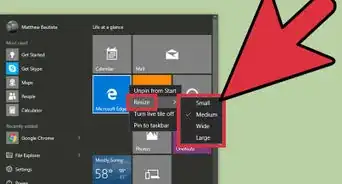
3Right-click the tile. A black context menu should appear.
-
4Unpin the tile. Select Unpin from Start from the top of the context menu. The tile should be removed from Start. It may take a few seconds. If it's taking longer, re-open Start or restart Windows Explorer.Advertisement


Things You'll Need
- Device running Windows 10












About This Article
Article SummaryX
1. Open the Start menu.
2. Right-click the tile you wish to unpin.
3. Click Unpin from Start.
Did this summary help you?
Advertisement