This article was co-authored by wikiHow Staff. Our trained team of editors and researchers validate articles for accuracy and comprehensiveness. wikiHow's Content Management Team carefully monitors the work from our editorial staff to ensure that each article is backed by trusted research and meets our high quality standards.
The wikiHow Tech Team also followed the article's instructions and verified that they work.
This article has been viewed 4,582 times.
Learn more...
This wikiHow teaches you how to permanently delete the Parallels Desktop app from your computer, using Mac.
Steps
-
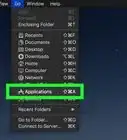
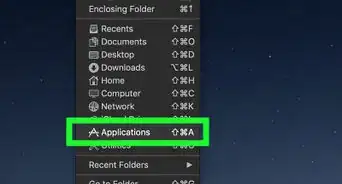
1Open the Applications folder on your Mac. You can find the Applications folder on the Dock or the left sidebar in any Finder window.
- If you don't see the sidebar, click the View tab on the menu bar at the top, and select Show Sidebar.
-
2Click and drag the Parallels Desktop icon to the Trash bin. Your Trash bin is located on the right-hand side of your Dock. This will move the Parallels app to Trash.
- If you're prompted, enter your Mac's admin user password to confirm your action, and move the app to Trash.
-
3Right-click the Trash bin on the Dock. This will show your options on a pop-up menu.
-
4Click Empty Trash on the right-click menu. You will have to confirm your action in a new pop-up window.
-
5Click Empty Trash in the confirmation pop-up. This will empty your Trash bin, and permanently delete the Parallels app from your computer.







About This Article

1. Open Applications.
2. Drag the Parallels Desktop icon to the Trash bin.
3. Right-click the Trash bin.
4. Click Empty Trash.
5. Click Empty Trash in the confirmation pop-up.